1. Start by creating the cabinet you want in the space.
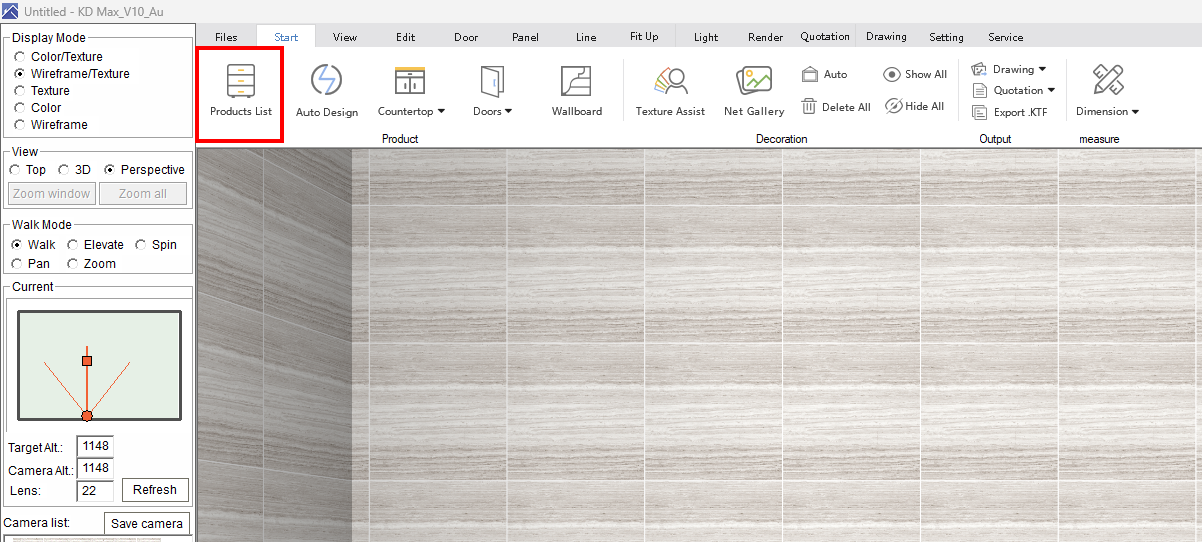
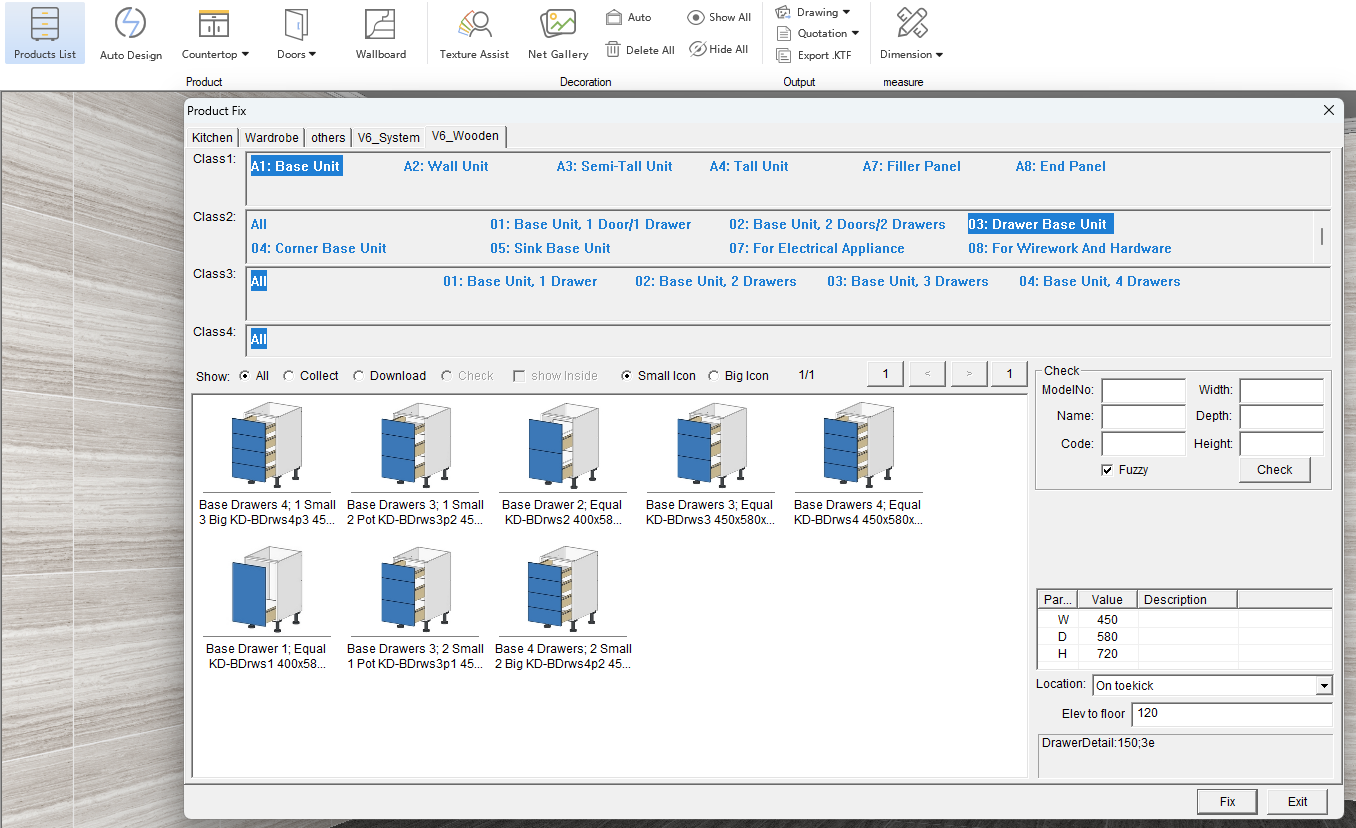
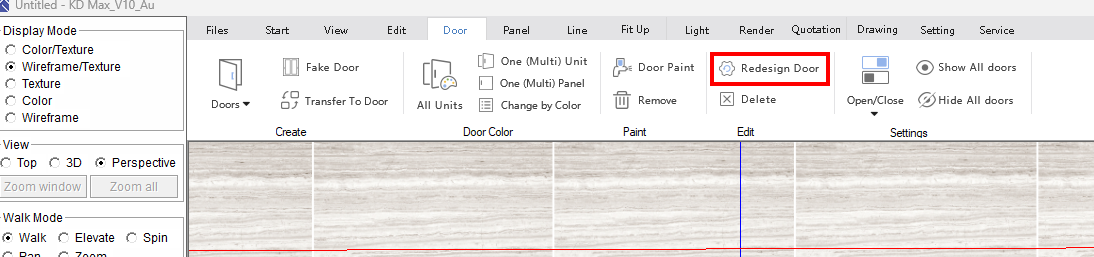
2. Next, click the door panel along the top pane of the window
3. Select the redesigned door.
4. Select the drawers/doors/panels you want to customize (Note - you can select multiple items with this function)
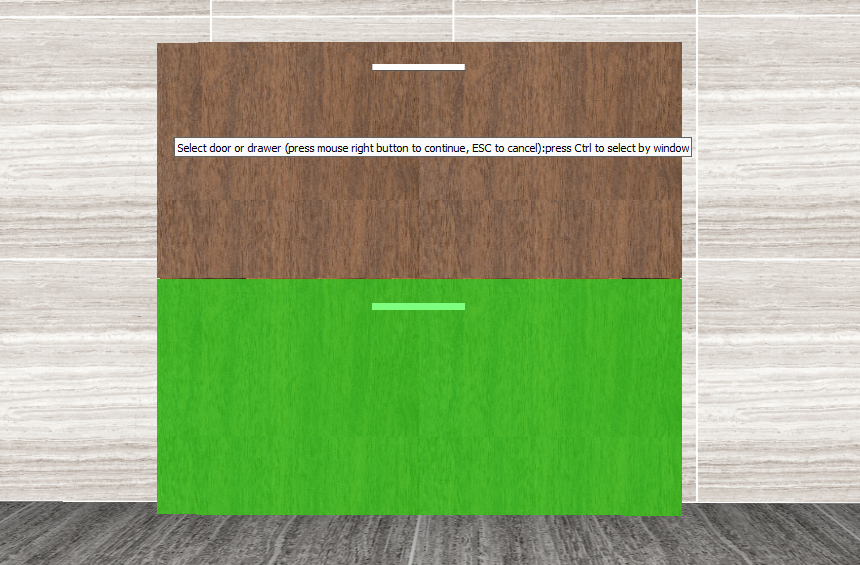
5. Customize the setting between the drawers from this first panel
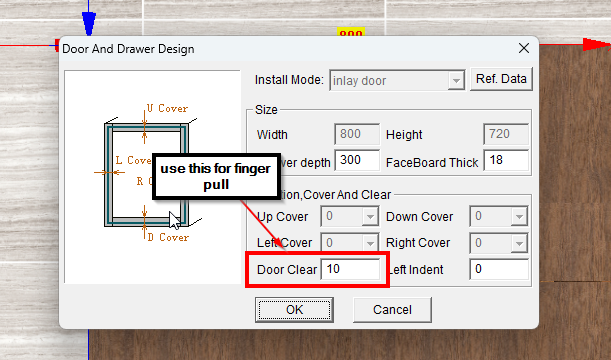
6. Click okay
7. Next, we right-click the panel that has the door material and select the type of panel you would like the door design to look like
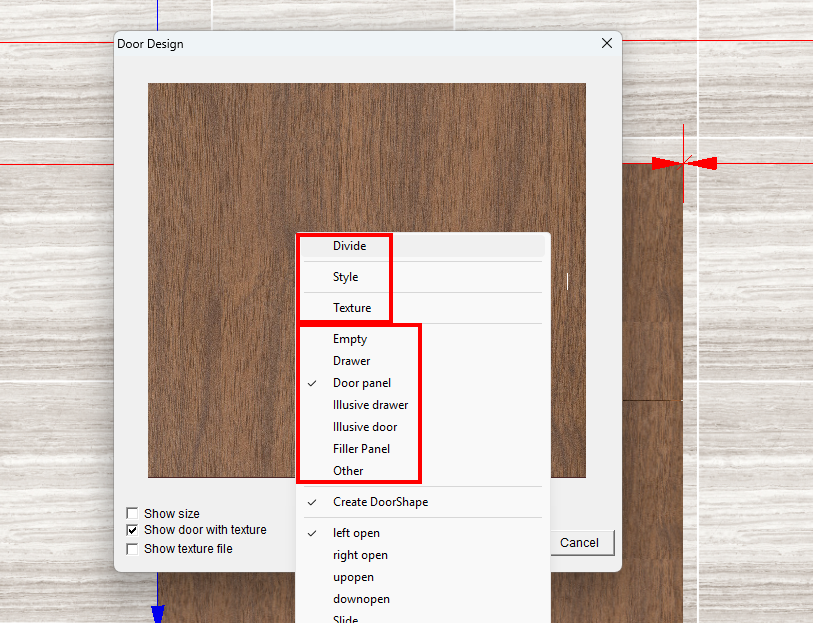
8. In the example below, we are changing the drawers to a finger pull with an indented gap between each item.
9. Once you have the look you are going for, you can click okay.
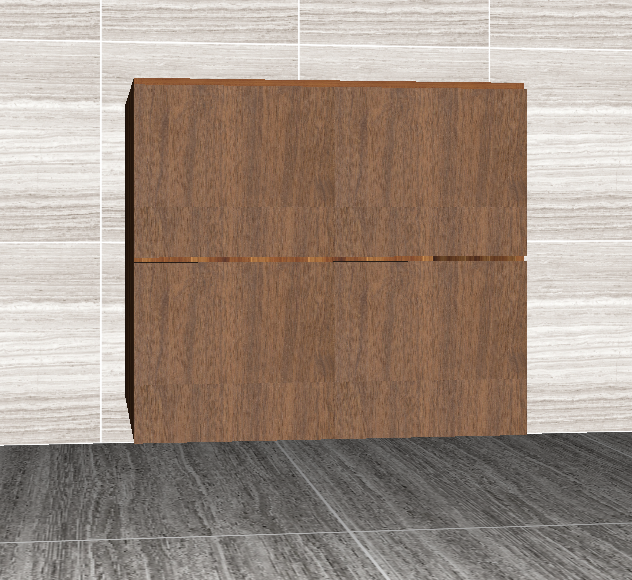
10. Once finalized, check to make sure the measurements are what you were looking for, and if you need to make any adjustments
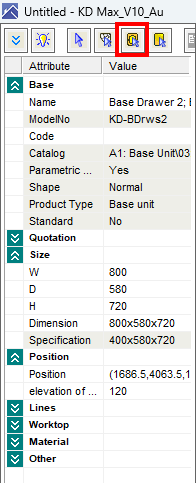
11. If it's only a two-door drawer, you will have to manually adjust the top shelf to have the finger pull design. Right-click the cabinet and select Property
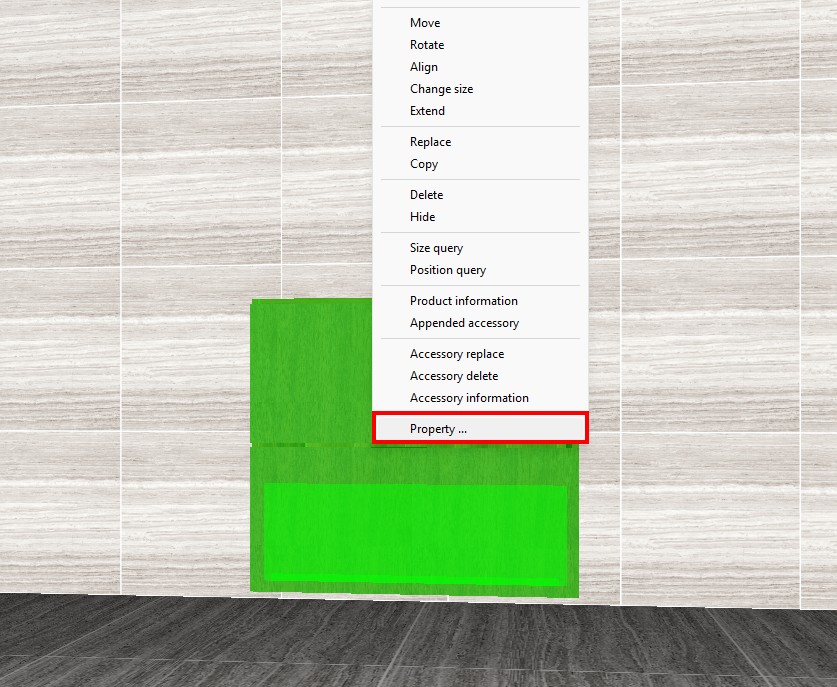
12. Select the shown icon and select the drawer you want to manually change
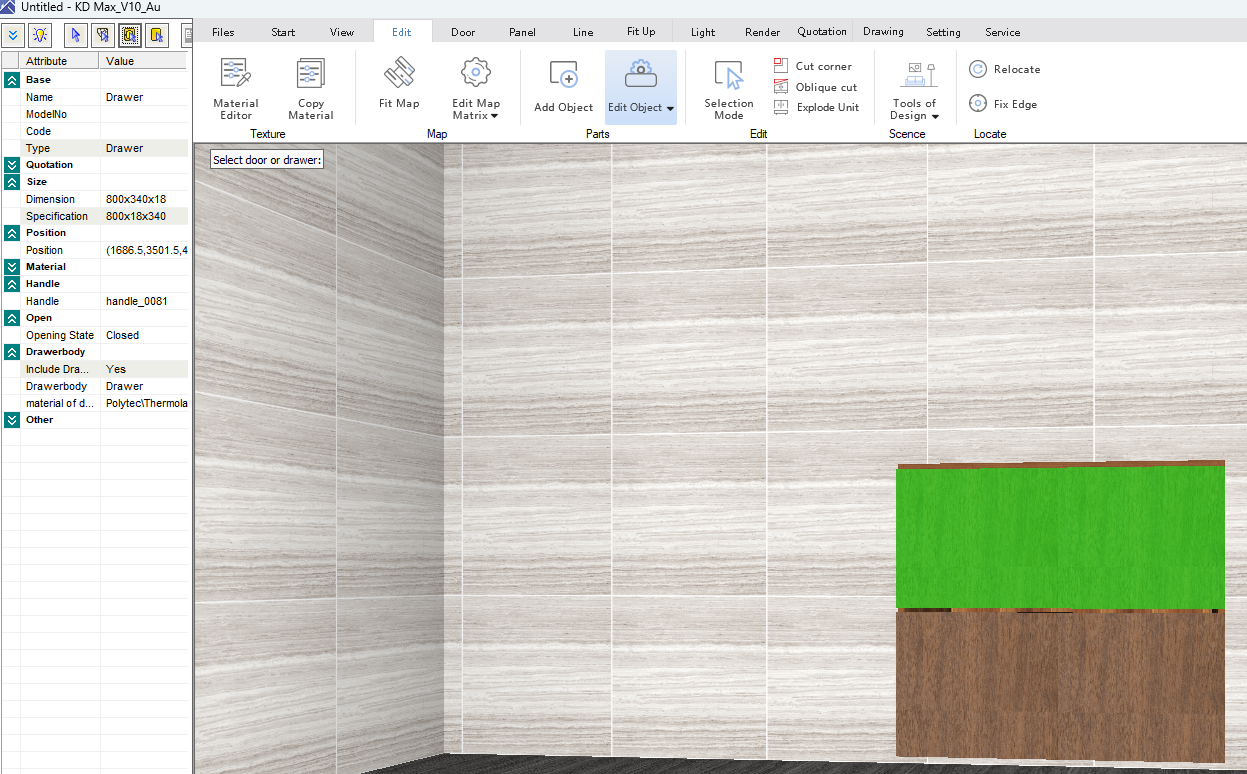
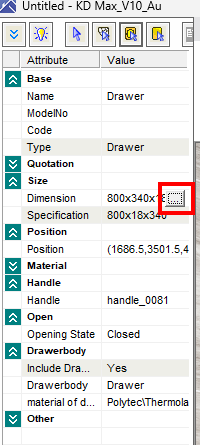
13. Select the dimension you want to change - you can adjust which side it's coming off by what you have selected in the second box.
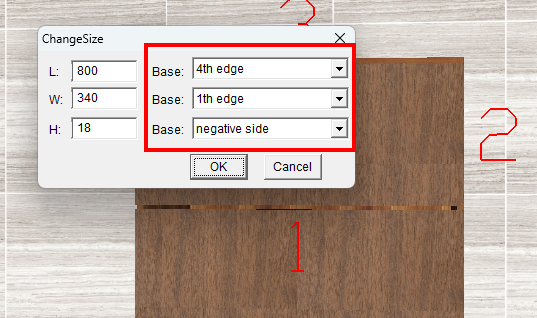
14. Viola You have a finger pull drawer cabinet - This method will have to be applied atoall the cabinets within the drawing if you want them all to have finger pull styling
Was this article helpful?
That’s Great!
Thank you for your feedback
Sorry! We couldn't be helpful
Thank you for your feedback
Feedback sent
We appreciate your effort and will try to fix the article