What is it?
The Benchtop Specifier is a revolutionary benchtop ordering tool designed to streamline the benchtop ordering process, and move away from clunky order pads or hand sketches. Seamlessly integrated into our platform, this feature allows your customers to specify custom benchtops with ease and precision.
How do I enable it?
To enable the Benchtop Specifier, go to Tools > Settings > Manufacturer Defaults (or click https://cabinetry.online/settingsPage.php?settings=manu_defaults). If you don't see this option in your settings menu, please reach out to the Cabinetry.Online support team on support@cabinetry.online
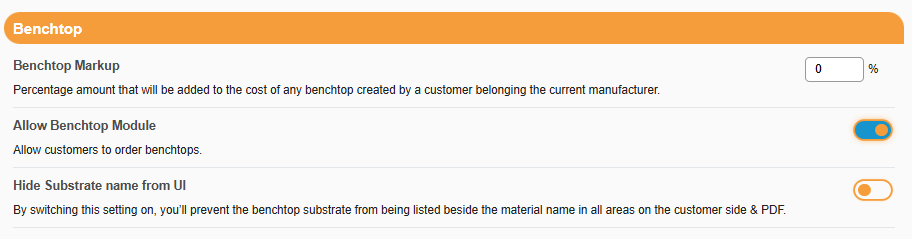
Setting up Benchtop Specifier
To set up Benchtop Specifier, 4 main components need to be reviewed: Materials, Profiles, Joins and Pricing Matrix
Materials
To enable additional Benchtop materials for ordering in your Benchtop Specifier, start in Benchtops > Materials.
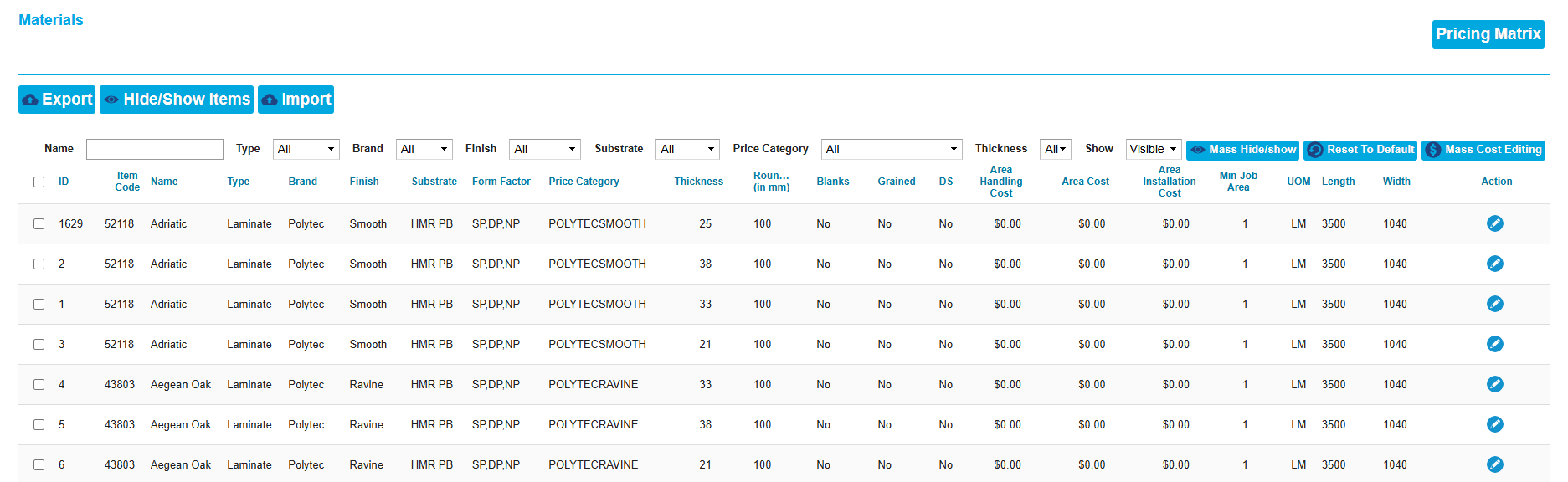
This works similarly to standard materials in Cabinetry.Online. Use the filters at the top of the page to narrow down your search selection, and use the Hide/Show Items button to enable a new colour or material.
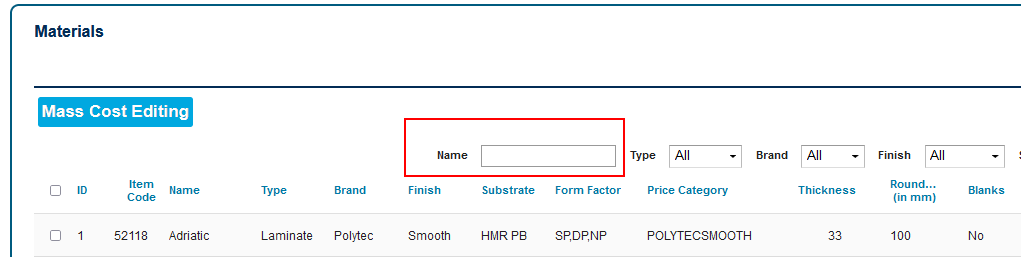
Name search box
Allows the user to do a text-based search in the Name field only. This function will auto-search based on 1 second of inactivity after a keystroke, or by the user hitting ENTER.
Mass Hide/Show
This function moves away from the way mass hiding/showing is done in other parts of the app. It works based on the options that have been set in the dropdown filters, to trigger what is to be hidden/shown. E.g. in this option, selecting 'Matera' in the 'Finish' filter, then clicking 'Mass Hide/Show' will show a pop-up prompt to either hide/show options matching the filter settings.

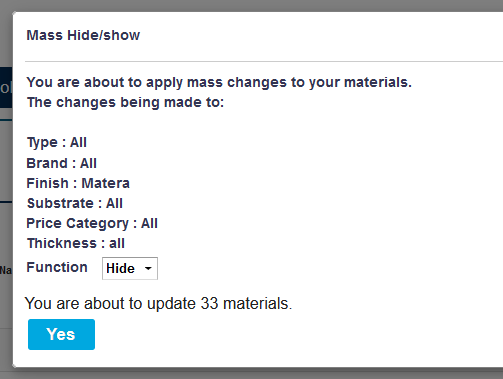
The function drop-down in this pop-up will always be the inverse of what was set on the 'Show' dropdown on the main Bench Materials page. In the above example Function is set to 'Hide', and indicates that 33 materials are set to be updated. Upon clicking 'Yes', the 33 visible 'Matera' materials will be hidden.

Reset to Default
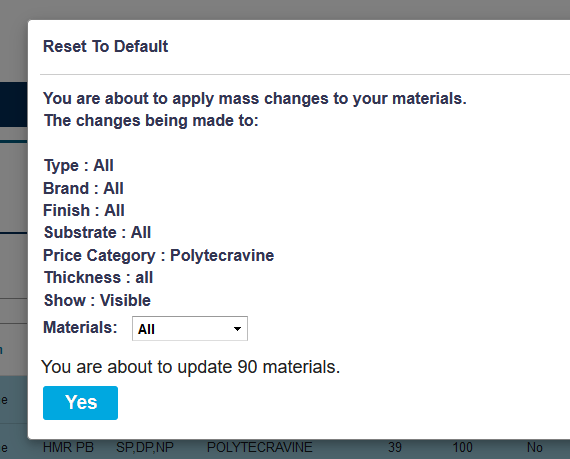
This function moves away from the way mass reset to defaults are done in other parts of the app. It works based on the options that have been set in the dropdown filters, to trigger what is to be reset. E.g. In this option, selecting 'POLYTECRAVINE' in the Price Category filter, then clicking 'Reset to Default' will show a popup prompt to reset to default values for either 'On Page Only' (the 25 options on the page that were visible when you clicking the Reset to Default option, or to reset 'All' options matching the filter settings (including options not visible on the current page being viewed).
Mass Cost Editing
This function slightly changes the way Mass Cost Editing is done in other parts of that app, by utilising the fields set in the dropdown filters at the top of the table, to trigger what pricing is to be changed. E.g. In this option, selecting a range of filters and then clicking 'Mass Cost Editing' will trigger all matching materials to be updated.

Once 'Mass Cost Editing' is clicked, a pop-up will show.

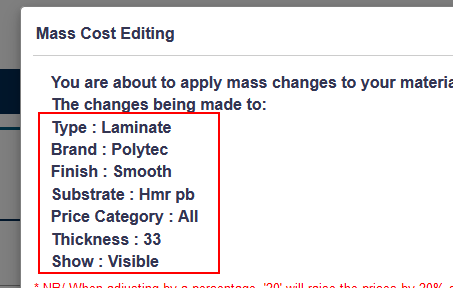
The left-hand part of the pop-up displays the options that were set in the filter, and what the mass cost edit will apply to.
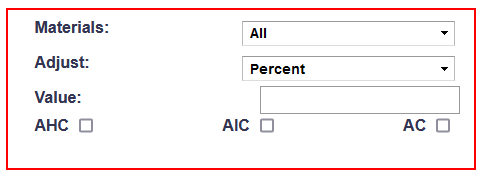
The right-hand part of the pop-up displays:
- What materials the mass cost edit is to apply to: ALL (all materials matching the left-hand side criteria), or On Page Only (the materials showing only on the page, up to 25 maximum)
- Adjust: How the price changes will be adjusted (by percentage, or a fixed amount)
- Value: the amount of the change (e.g. the value 10 will either represent 10% (if 'Percent' is selected) or $10 (if 'Fixed' is selected).
- AHC - Area Handling Cost checkbox. If ticked on, the mass cost edit will apply to this field.
- AIC - Area Installation Cost checkbox. If ticked on, the mass cost edit will apply to this field.
- AC - Area Cost checkbox. If ticked on, the mass cost edit will apply to this field.
The lower part of the pop-up allows you to Bulk Edit Price Categories. This will assign a new price category to any selected materials. By selecting Polytec > Gloss > POLYTECRAVINE, all Polytec Gloss materials will be assigned the POLYTECRAVINE price category, instead of the POLYTECGLOSS category:

Material Fields
The Benchtop Specifier also presents a range of new field options that can apply to bench materials.
What each field is, and how it is applied is laid out below:
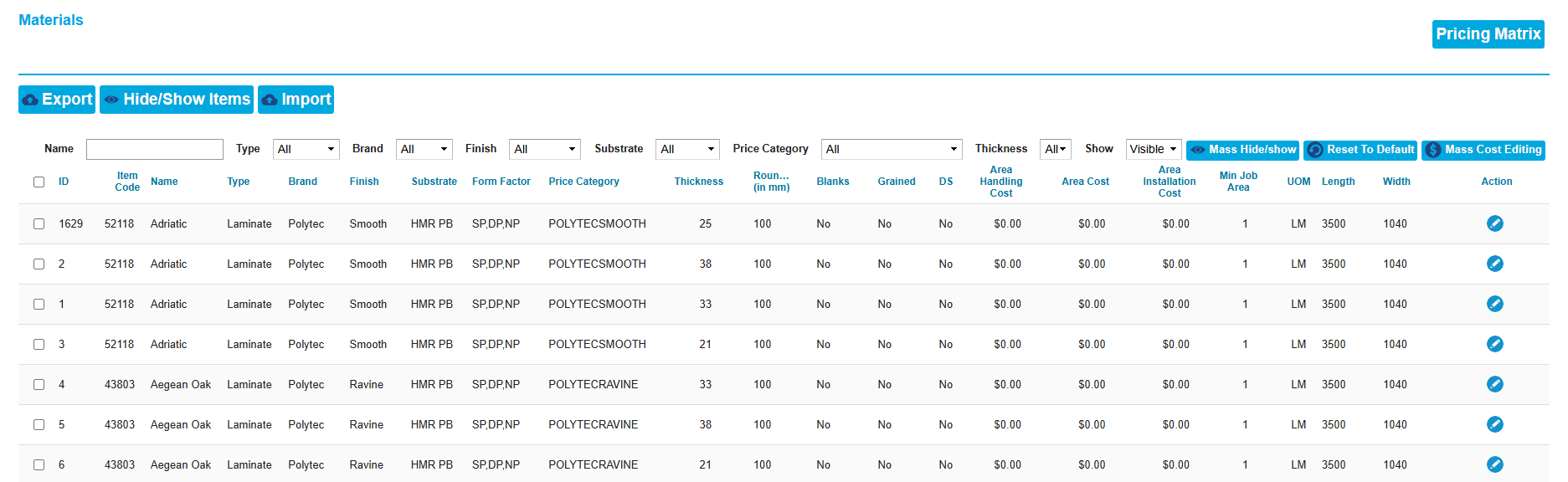
FIELD | PURPOSE |
ID | Used for Admin purposes. Denotes the database ID of this material |
Item Code | This is used to assign a reference code to a Material, typically used for supplier codes. |
Name | The name of the colour of the material |
Type | The type of the benchtop material - e.g Laminate, Stone, Solid Surface etc. |
Brand | The supplier/manufacturer of the material |
Finish | The appearance of the surface of the material |
Substrate | What material is used for the internal part of the bench |
Form Factor | Mostly used for Post Form tops. Used to indicate if the benchtop piece can have a profile applied to one side (SP), both sides (DP), or neither side (NP). This is also used within the Price Matrix to fetch a price.
|
Price Category | A distinguishing string, which can be used to match this material to a bench price matrix, to map to a specific price category. If no value is set, then no matrix lookup should occur, and the only value used will be the value listed in the Area Cost (AC) column. |
Thickness | This field states the Thickness of the Benchtop and is used within the Pricing Matrix to allocate pricing to different thicknesses. |
Roundup (in mm) | Allows the chargeable size of the benchtop to be rounded up to the nearest value as set in this field. These values are as follows:
E.g. if 100 (mm) set, then a 2485mm top would be priced as if the size was 2500mm. |
Blanks | This field is for Benchtop Materials that are manufactured from Blanks. Blanks are pre-fabricated, benchtops that come in set sizes. Typically, they are available in either 900mm deep (double-profile) or 600mm deep (single-profile) variants. Benchtop Blanks are then ripped down to suit the customer's needs. If this field is set to Blanks = Yes, extra ordering restrictions in the Online Portal apply. A customer is unable to order a double-profile Blank material unless it is exactly 900mm deep. All other depths are available for ordering in a single-profile variant, and must be ripped down to suit the customer's specifications. |
Grained | This indicates if a material has a directional grain through it. Yes = directional grain, No = no directional grain. |
DS - Double Sided | This states whether a material is available in a Double-Sided variant. This feature is yet to be implemented within the Benchtop Specifier.
|
Area Handling Cost (AHC) | Depending on the Unit of Measurement that is defined on the material (M2 or L/M), this is a rate that is multiplied per linear metre or m2 of benchtop added, as a handling charge. |
Area Cost (AC) | The cost that will be applied to the benchtop, either by linear metre (by multiplying by the benchtop length) or by square metre usage of the bench. If a price category has been defined on the material, then this value MAY be $0, and will additionally apply costing from the Pricing Matrix. |
Area Installation Cost (AIC) | A fixed per m2 rate that could be used to assign installation charges. This will not change to a l/m calculation if the user has the UOM set as l/m. |
Min. Job Area | The minimum amount of material that needs to be added to a job. If M2 is selected under UOM, then this would be a m2 minimum. If L/M is selected, this would be a minimum linear metre amount. |
Unit of Measurement (UOM) | This stands for Unit of Measurement. |
Length | Max Length that any one piece of a bench using this material can be ordered in. Used for validation. |
Width | Max Depth that any one piece of a bench using this material can be ordered in. Used for validation. |
Editing Materials
You can edit a Material by clicking the 'Pencil' icon on the right of the Material table.
There are a number of editable values on Benchtop Materials. Anything that is Admin-controlled and cannot be edited will be greyed out.
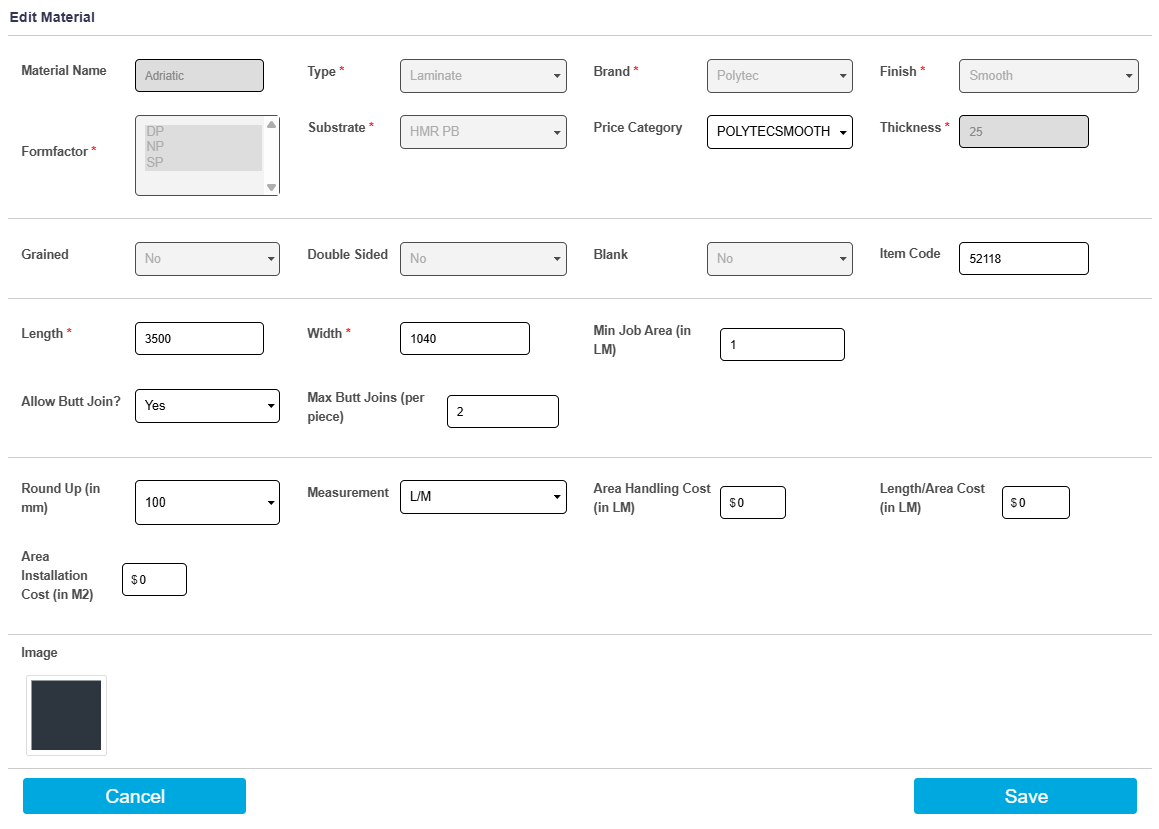
Allow Butt Join?
This is a Yes or No field to determine whether Butt Joins are available on this Benchtop material. This allows the customer to order Benchtops longer than the maximum Length, and will add Butt Joins to segment their Benchtop.
Max. Butt Joins (per piece)
If 'Yes' is selected for 'Allow Butt Join?', an additional field for 'Max. Butt Joins (per piece)' appears, allowing you to specify the number of times a Butt Join can be applied to a Benchtop.
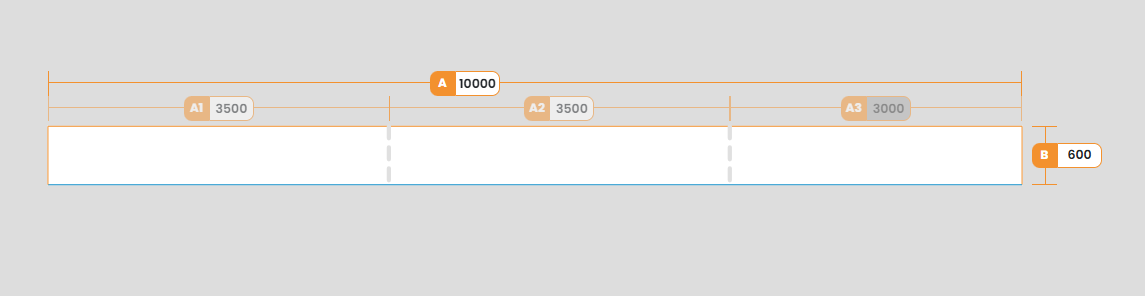
A benchtop with 2 Butt Joins:
Profiles
The Benchtop Profiles section allows for a fully customisable and editable experience for manufacturers, allowing you to show only the finishes that you want to offer. Custom options can be configured, with unique imagery and advanced restrictions as to where that profile can be utilised by the customer.
The key functions are outlined below:
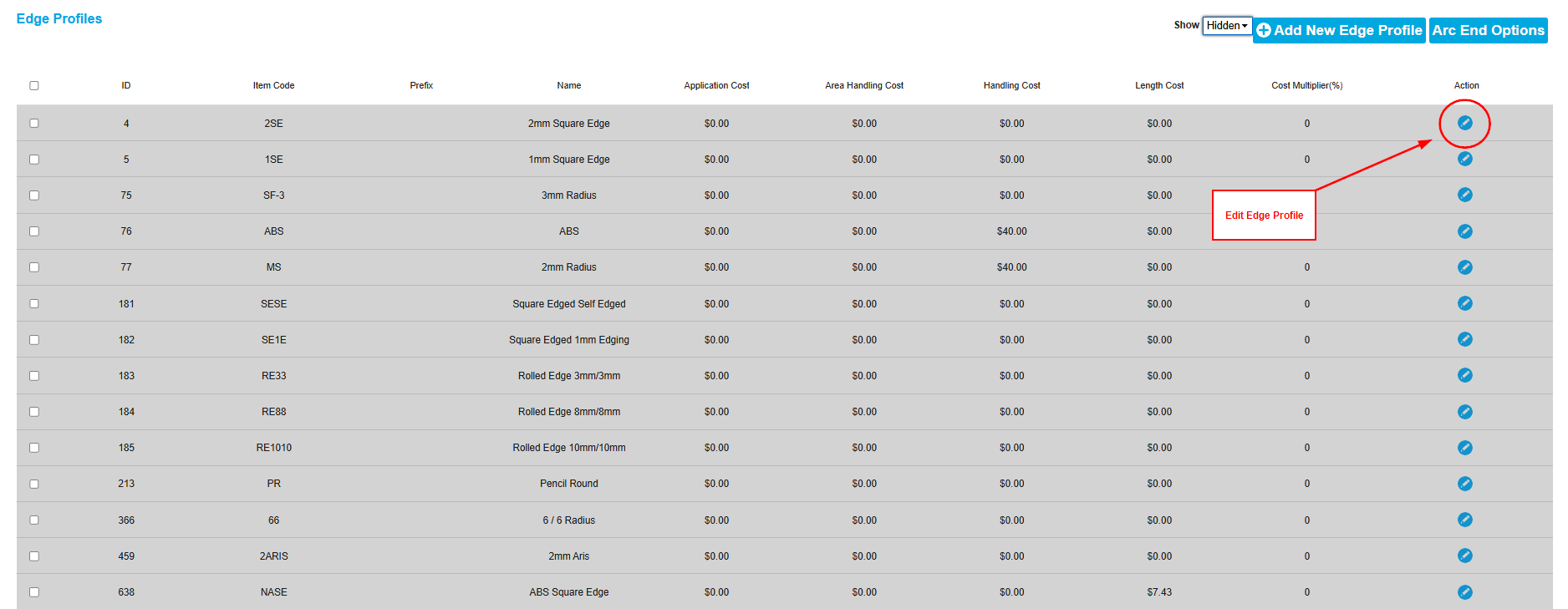
Profile Fields
FIELD | PURPOSE |
ID | Used for Admin purposes. Denotes the database ID of this edge profile. |
Item Code | Used to note a shortened version of the profile name |
Name | The customer-facing name of the bench edge profile |
Application Cost (l/m) | A linear metre rate that is applied to the cost of a benchtop, applied for the length of the top that has this profile applied. E.g. a $10 Application cost applied on one long side of a 2400mm bench would apply a $24 Application Cost. |
Area Handling Cost (m2) | A square metre (m2) rate that is applied to the cost of a benchtop, applied based on the total size of the benchtop piece that the profile is being applied to. E.g. a $100 Area Handling Cost applied on a 2400mm x 600mm straight bench (2.4*0.6 = 1.44m2) would apply a $144 Area Handling Cost. |
Handling Cost | A per-piece rate that is applied to the cost of a benchtop, applied for the number of times that this profile is applied. E.g. a $20 Handling Cost applied on a benchtop which has a profile assigned to two sides, would receive apply a $40 Handling Cost. |
Length Cost (l/m) | A linear metre rate that is applied to the cost of a benchtop, applied for the length of the top that has this profile applied. E.g. a $10 Application cost applied on one long side of a 2400mm bench would apply a $24 Application Cost. |
Cost Multiplier | The Cost Multiplier field gives you the ability to apply a surcharge to the typical l/m or m2 rate for the benchtop material (Area Cost), based on having this profile assigned to the top. E.g A value of 10 would add 10% onto the price. So if m2 or l/m of the selected material’s Area Cost was set as $100, with a 10% cost multiplier, it would then become $110 |
Add New Edge Profile Button
To create new profiles, click the ‘Add New Edge Profile’ button. A pop-up dialog will show with options that need to be set. The Name, Code and all cost fields have been outlined below.

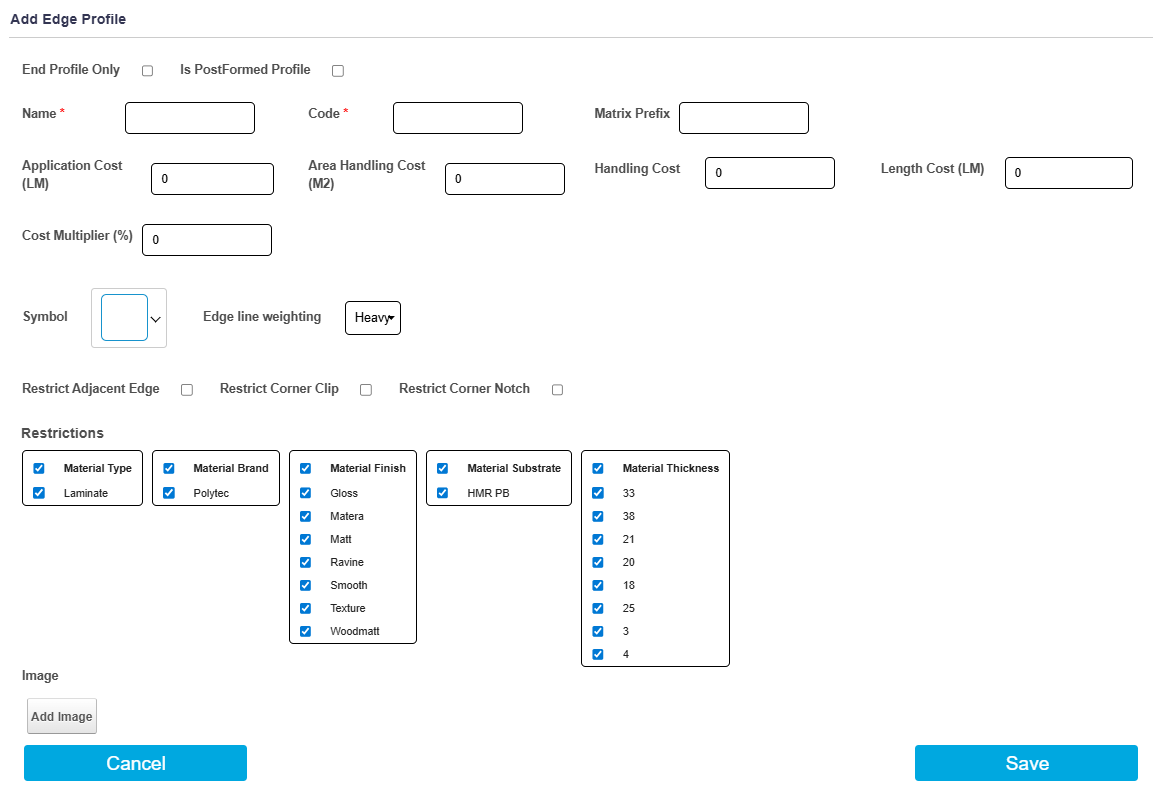
Add New Edge Profile Fields
FIELD | PURPOSE |
End Profile Only | This option will make this profile only available for ordering on the end of a benchtop. Ticking this box will show the 'Arc End option'. |
Arc End option | A dropdown field which will only be visible when a profile is marked as End Only profile. This allows for certain Edge Profiles to have a Round Arc or Curved Corners applied. Please see below this table for a more detailed breakdown of Arc End options. |
Is PostFormed Profile | A checkbox that is used to denote that this profile requires postforming. When checked, the ‘Is End Roll Available’ option will show. PostFormed profiles will automatically check on the ‘Restrict Adjacent Edge’ option, and will also be restricted from applying to customer-applied clips and notches applied on the top. |
End Roll Available | A checkbox that is used to denote that this profile can be applied as an ‘End Roll’ on the end of a benchtop. If unchecked, the customer will only be able to apply this profile on the front and backside of a benchtop. This setting does not override the 'Restrict Adjacent Edge' option, so PostFormed profiles still cannot be ordered adjacent to one another when this setting is enabled. Example when ‘Is End Roll Available’ is unchecked: 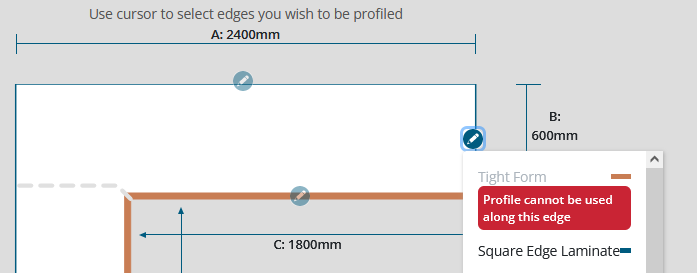 Example when ‘Is End Roll Available’ is checked:  |
Name | The name of the Edge Profile. Each profile can be renamed to suit your needs. |
Code | This is used to assign an internal reference code to a Material, typically used for supplier SKU codes. |
Matrix Prefix | Used to assign a Prefix to this profile if a Pricing Matrix is being used for this item. In most cases, this will not apply to Edge Profiles. |
Application Cost (LM) | A linear metre rate that is applied to the cost of a benchtop, applied based on the length of the top that has this profile applied. E.g. a $10 Application cost applied on one long side of a 2400mm bench would apply a $24 Application Cost. This field can be used for whatever purpose fits your needs, but it is typically used to apply a costing to account for Labour and Glue involved with applying this edge to a Benchtop. |
Area Handling Cost (M2) | A square metre (m2) rate that is applied to the cost of a benchtop, applied based on the total size of the benchtop piece that the profile is being applied to. E.g. a $100 Area Handling Cost applied on a 2400mm x 600mm straight bench (2.4*0.6 = 1.44m2) would apply a $144 Area Handling Cost. |
Handling Cost | A per-piece rate that is applied to the cost of a benchtop, applied each time this profile is applied. E.g. a $20 Handling Cost applied on a benchtop which has a profile assigned to two sides, would receive a $40 Handling Cost. |
Length Cost (LM) | A linear metre rate that is applied to the cost of a benchtop, applied based on the length of the top that has this profile applied. E.g. a $10 Application cost applied on one long side of a 2400mm bench would apply a $24 Application Cost. This field can be used for whatever purpose fits your needs, but it is typically used to apply a linear metre (LM) cost to a Benchtop to account for Edging Materials and labour per linear metre. |
Cost Multiplier (%) | The Cost Multiplier field gives you the ability to apply a surcharge to the typical (LM) or (m2) rate for the benchtop material (Area Cost), based on having this profile assigned to the top. E.g A value of 10 would add 10% onto the price. So if m2 or l/m of the selected material’s Area Cost was set as $100, with a 10% cost multiplier, it would then become $110 |
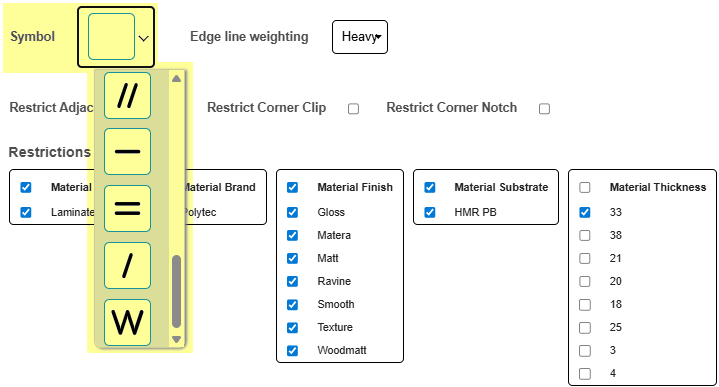
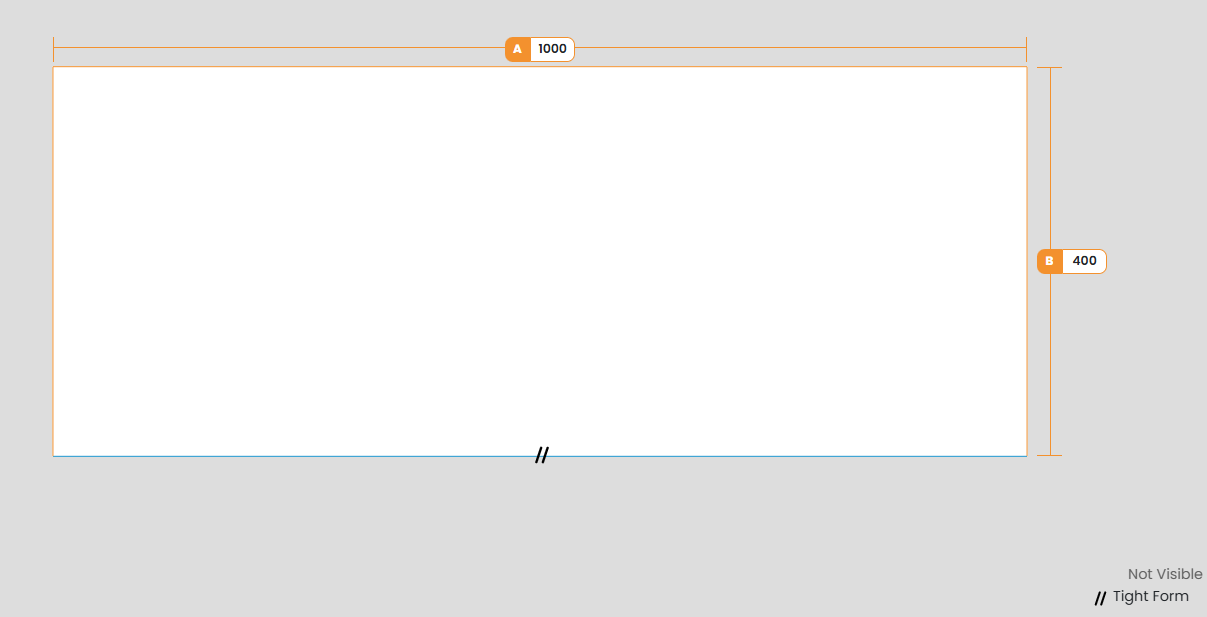
Symbol | Used to assign a visual symbol to an Edge Profile within the Benchtop Specifier. This can help customers easily identify what edge profile is assigned to an edge at a glance.
|
Edge Line Weighting | Used to assign a thicker line weight to an edge profile. This could be used to make specific Edge Profiles easier to identify for customers by assigning a thicker line weight in addition to a symbol. |
Restrict Adjacent Edge | This can be enabled to restrict an edge from being ordered on adjacent edges. E.g. PostFormed profiles cannot be applied to adjacent edges due to the nature of the manufacturing process; therefore, this box is automatically ticked when a profile is marked as 'Is PostForm Profile'. |
Restrict Corner Clip | This can be enabled to restrict corner clips from being applied to this Edge Profile. |
Restrict Corner Notch | This can be enabled to restrict corner notches from being applied to this Edge Profile. |
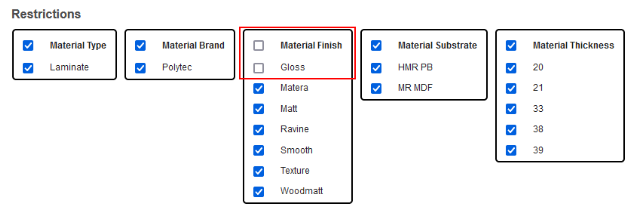
Restrictions | Used to apply specific restrictions to Edge Profiles. E.g. a Tight Form profile may not be able to be applied to any colours in a gloss finish.
On the customer UI, if a ‘Gloss’ finished material is selected, then the Tight Form profile will not appear in the UI, and will not be selectable. |
Image | Used to apply a preview image to an Edge Profile. |
Editing Arc End Options
Arc End options can be edited via the 'Arc End Options' menu. Here, you can rename the different options and set custom restrictions to each Arc End variant.


Arc End Fields
FIELD | PURPOSE |
Name | The name of the Arc End Profile. Each profile can be renamed to suit your needs. |
Lock defaults | A Yes/No option. If set to ‘Yes’, then the sizes are locked to the set value, and are not editable by a customer. |
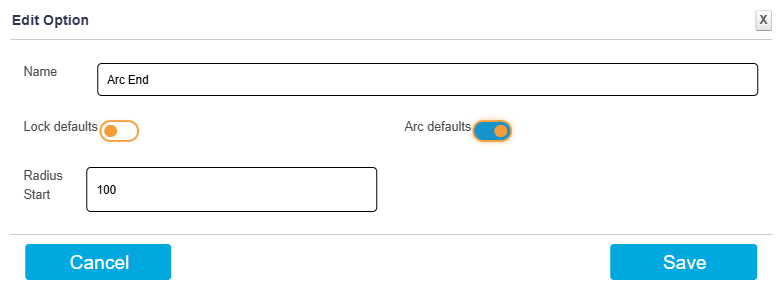
Arc defaults | A Yes/No option. If set to ‘Yes’, then this entry will be an Arc option, and therefore will not require a radius end. 'Radius start' should be set to the total width of the radius section, not the radius of the finished curve. |
Radius Start | The starting point of the arc/curved option, on the adjacent side to the benchtop end, away from the benchtop end. |
Radius End | The end point of the arc/curved option, on the side of the benchtop end. This measurement is the distance from the corner, to the finish of the profile. |
Arc End
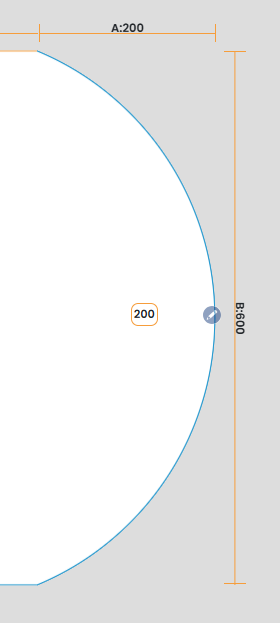
An 'Arc End' Edge Profile can be set up by enabling 'Arc defaults'. This will make the edge profile apply a consistent radius across the selected edge. The value entered in 'Radius Start' will define the distance from the outer edge of the benchtop to the end-point of the arc along the adjacent edge.
An 'Arc End' profile with a 100mm 'Radius start' 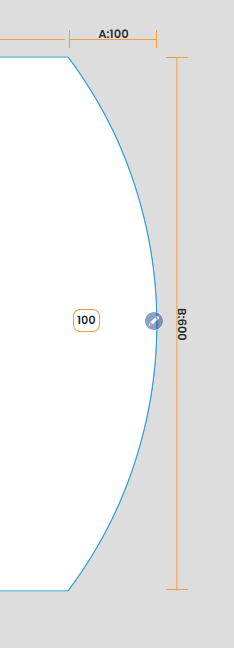 | An 'Arc End' profile with a 200mm 'Radius start'
|
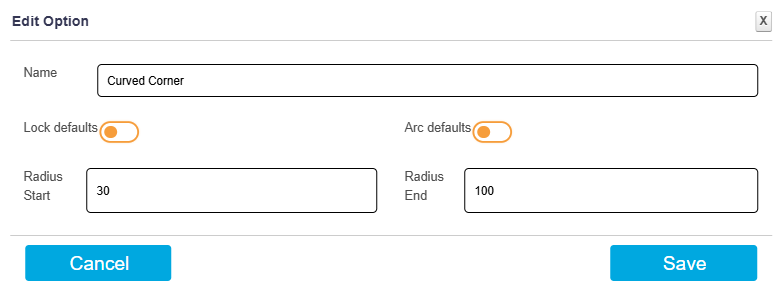
Curved Corner
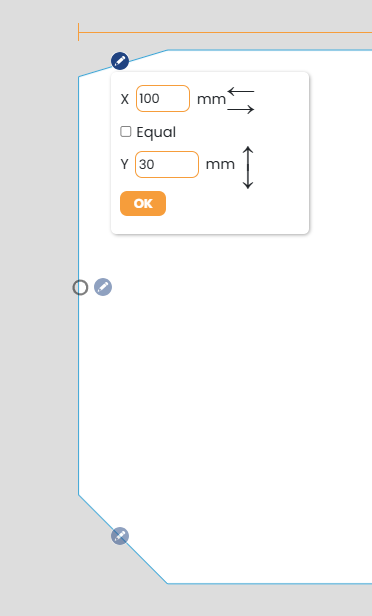
The Curved Corner option adds a curve to each corner adjacent to an edge with this Arc End Profile applied. The radius of these curves can be locked or unlocked, depending on the level of customisation you wish to offer to your customer.
Unlocking this Arc option will allow for extra modification to each radius by the customer. The X & Y radius can be modified independently, or the 'Equal' box can be ticked for a more consistent radius arc. Enabling 'Lock defaults' will hide this pop-up from the customer UI, to prevent the customer from modifying each radius.
Joins
The bench joins section allows you to set the naming convention for the different types of joins, as well as defining the price to be applied when the join is utilised on a top.
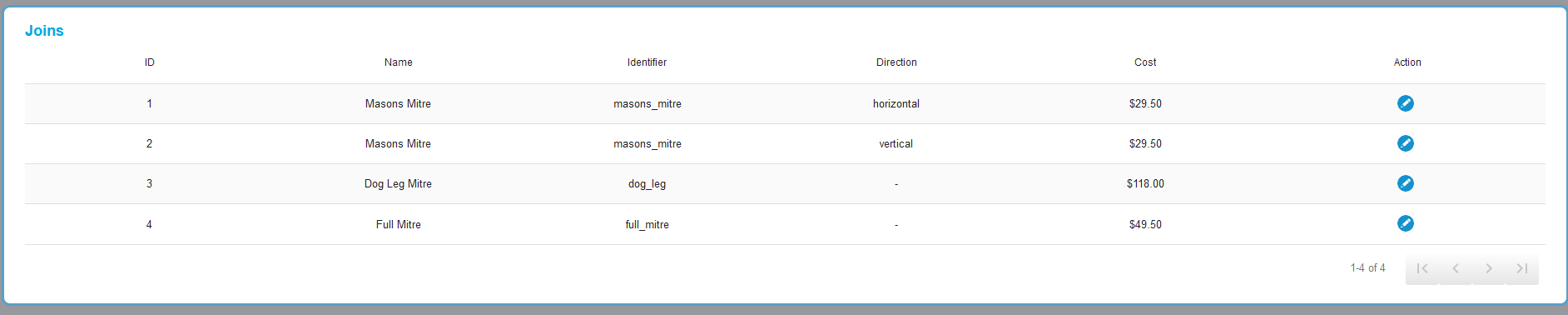
Each join option has an edit icon.
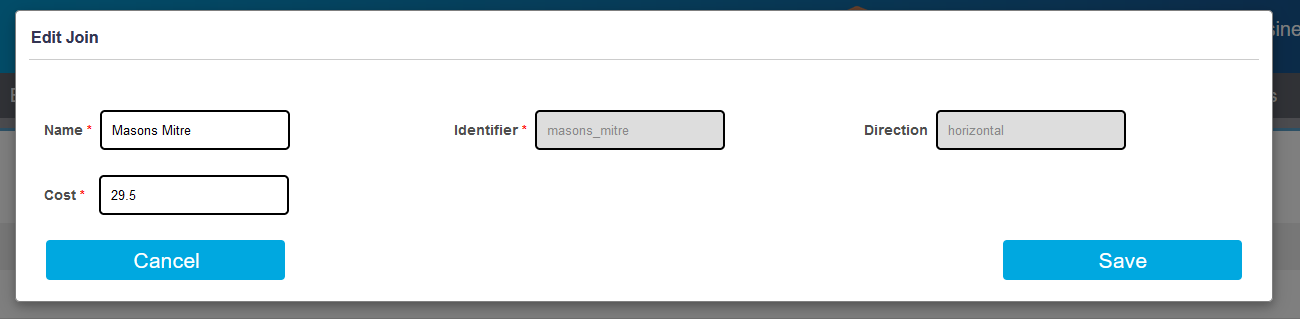
When clicked, a pop-up dialog will show with options to edit.
Joins Fields
FIELD | PURPOSE |
Name | The customer-facing name that is used to explain the type of top. |
Cost | A per join cost which is applied to a benchtop:
The cost specified here should encapsulate any items like toggle bolts. |
Identifier | An Admin-only value used as a database identifier of the ID of the join. This field is not editable. |
Direction | An Admin-only value used as a database identifier of the orientation of the join. This field is not editable. |
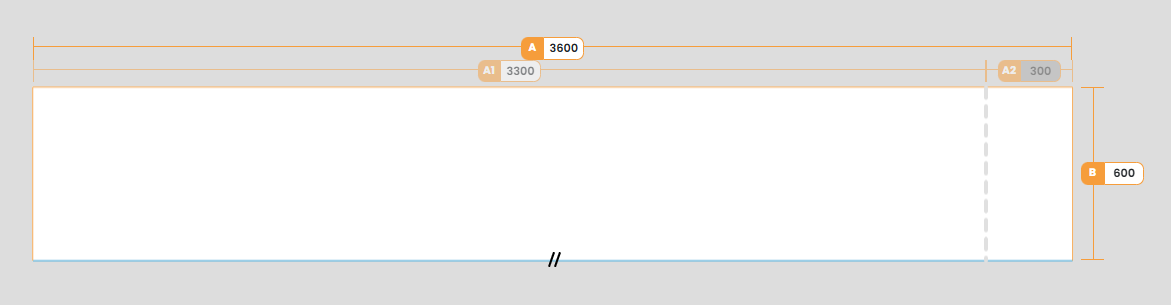
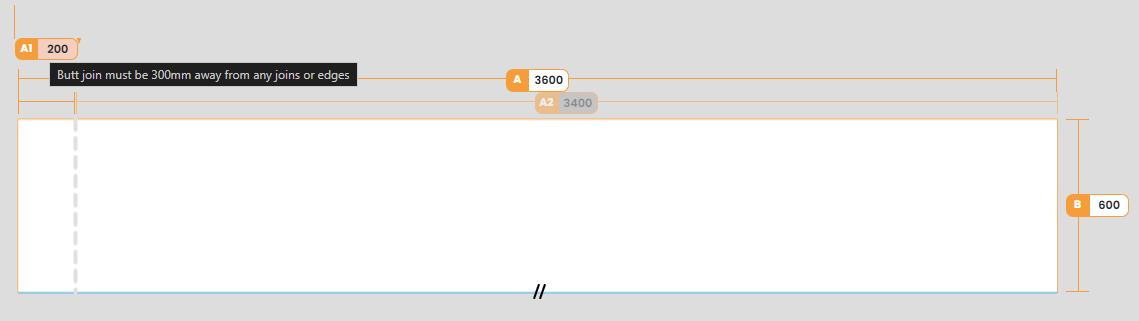
Minimum Distance | The minimum distance from a finished edge at which a Butt Join can be placed. E.g A straight benchtop ordered at 3600, using a material with a maximum length of 3500mm, will be comprised of 2 pieces:
Lengths A1 and A2 can then be modified by the customer after the benchtop has loaded, as long as their requested lengths still fall within the material and join restrictions:
|
Pricing Matrix
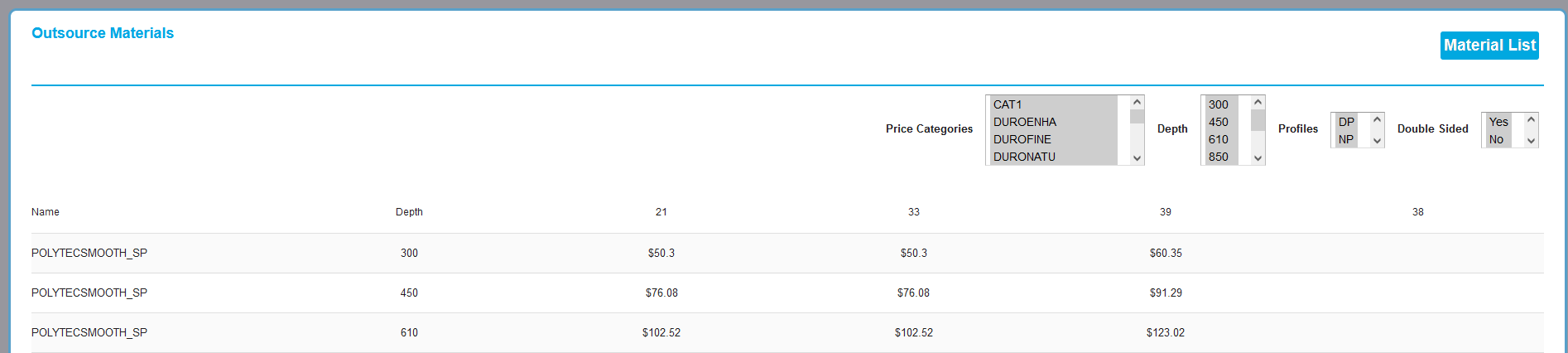
The Pricing Matrix allows for price breakdowns for materials to be summarised into pricing categories, which change based on the materials: Price Category, depth of top, thickness of top and form factor (single profile, double profile, no profile).
Pricing Matrix Fields
FIELD | PURPOSE |
Name | Combines the Price Category and Form Factor (profiles) into one string - {PriceCat_FormFactor} |
Depth | The depth component of the matrix indicates the mm depth of the top being used. |
Thickness | The thickness of the benchtop divides the pricing matrix into separate pricing columns. |
Pricing Matrix Filters
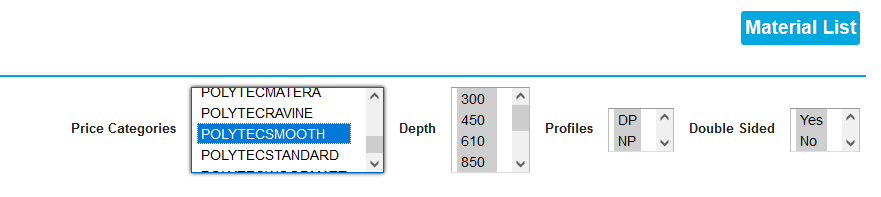
The pricing matrix filters allows you to condense down the matrix pricing options that are showing in the table.
The options can be filtered down by selecting (clicking individually on an item in the list), or multi-selecting (holding CTRL key while clicking on multiple items)
An example of multi-selecting items.

Benchtop Pricing Calculation Example
In this example, a benchtop will be manually calculated with the following variables:
- Customer Markup - 40%
- Benchtop Markup - 15% (found in Tools > Settings > Manufacturer Defaults)
- Material Pricing set to default (all pricing will be applied from the Pricing Matrix, Profiles and Joins)


The customer has ordered a Polytec Adriatic Smooth benchtop that is 1800mm x 620mm x 33mm with a Single 'Tight Form' edge profile.
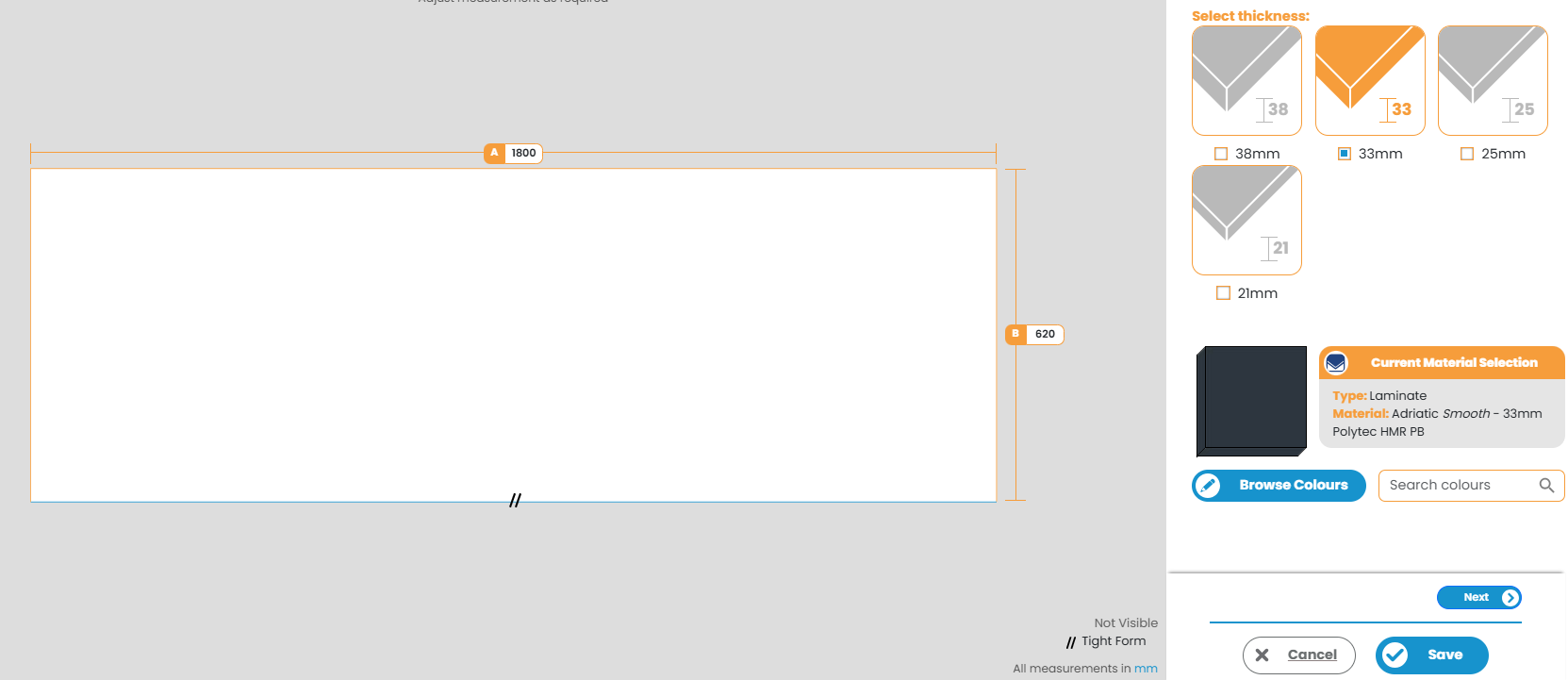
As the customer has specified their depth to be 620mm (side B), the depth exceeds 610, so the correct Matrix Price is:
- 850 Depth - $119.91
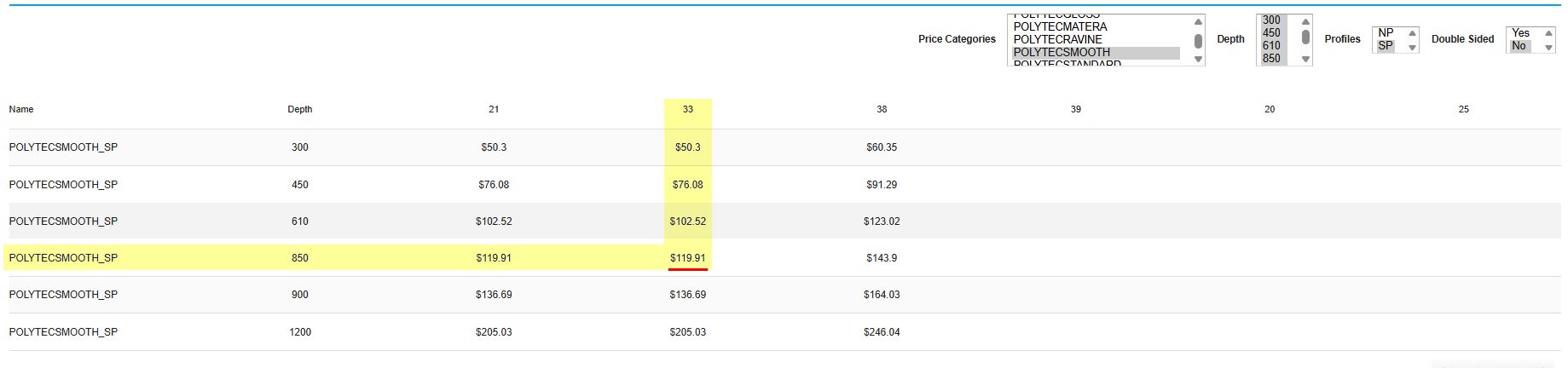
Using this, we can calculate our Material Cost:
Total Material Cost:
- $119.91 x 1.8m = $215.84
Next, we can calculate our Edge Profile price:

As this is a Single Profile (SP) benchtop, these prices are only applied once.
Application Cost (l/m) - $10 x 1.8m = $18
Area Handling Cost (m2) - $10 x (1.8m x 0.62m) = $11.16
Handling Cost (flat rate) - $10 per profile = $10
Total Edge Profile Cost:
- $18 + 11.16 + $10 = $39.16
As there was no Join in this benchtop, a join cost is not applied.
Total Benchtop Cost:
- $215.84 + $39.16 = $255.00
Finally, we will apply our Markups.
Benchtop markup is applied first, and the Customer markup is applied last:
- $255.00 + 15% = $293.25
- $293.25 + 40% = $410.55
Final Price for Customer = $410.55
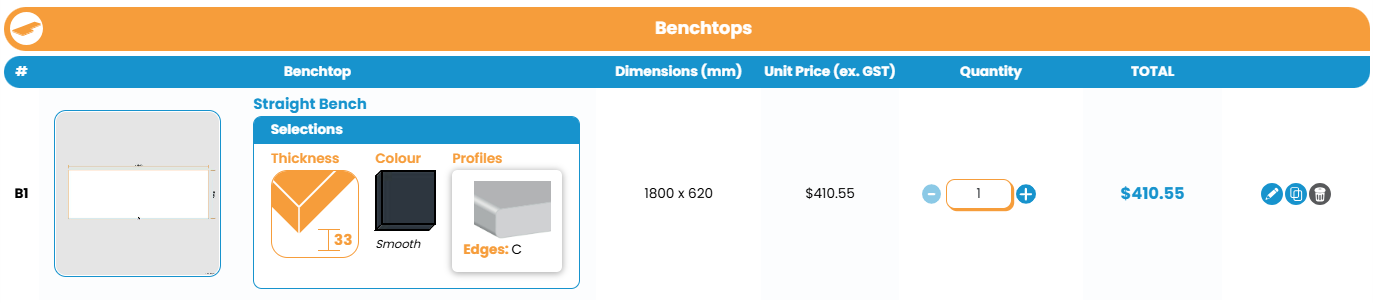
TABLE OF CONTENTS
- What is it?
- How do I enable it?
- Setting up Benchtop Specifier
Was this article helpful?
That’s Great!
Thank you for your feedback
Sorry! We couldn't be helpful
Thank you for your feedback
Feedback sent
We appreciate your effort and will try to fix the article