Method #1 - Simple and Effective
This method is a simple and effective way to offer Reverse Bevel door profiles to your customers, without needing to redo your pricing data.
1. Enable a Reverse Bevel Door Profile
The simple way to make Reverse Bevel/Shark Nose Doors available to order on your Online Portal, is to enable the 'Reverse Bevel' or 'Shark Nose' Door Profile that uses the 'Flat Panel' Door Filter. Both of these door profiles are the same, so pick the name that you prefer to use.
Select your preferred name, then click Hide/Show Items in the bottom left corner to make the Door Profile available to order on your Online Portal.

This way, your Reverse Bevel products will reference the prices that you have already set up for Flat Panel Materials and Edges. This means your material pricing will be consistent across your range, and you won't need to re-enter any pricing data.
To modify your pricing to accommodate the additional machining and labour time involved with Reverse Bevel Door manufacturing, you can set higher Handling, Machining and Assembly costs on your selected Door Profile.
To add a Flat Rate price for Reverse Bevel products, enter a price in Handling Cost (HC) or Machining Cost (MC). These pricing categories will add a flat rate per part.
To add a Variable Price to your Reverse Bevel products, enter a price in Area Handling Cost (AHC), or Area Machining Cost (AMC). These pricing categories will add a variable price, based on the m2 size of the part.
______________________________________________________________________________________________
Method #2 - More Advanced Control
This method gives much greater control of your pricing and availability for Reverse Bevel products. By effectively duplicating your 'Flat Panel' materials for 'Reverse Bevel' products, you can set unique Handling, Machining, and Assembly costs on Reverse Bevel Materials and Edges, instead of just the Door Profile. This method also allows you to limit which materials can be ordered in a Reverse Bevel Profile.
1. Setting your Product Availability
Materials
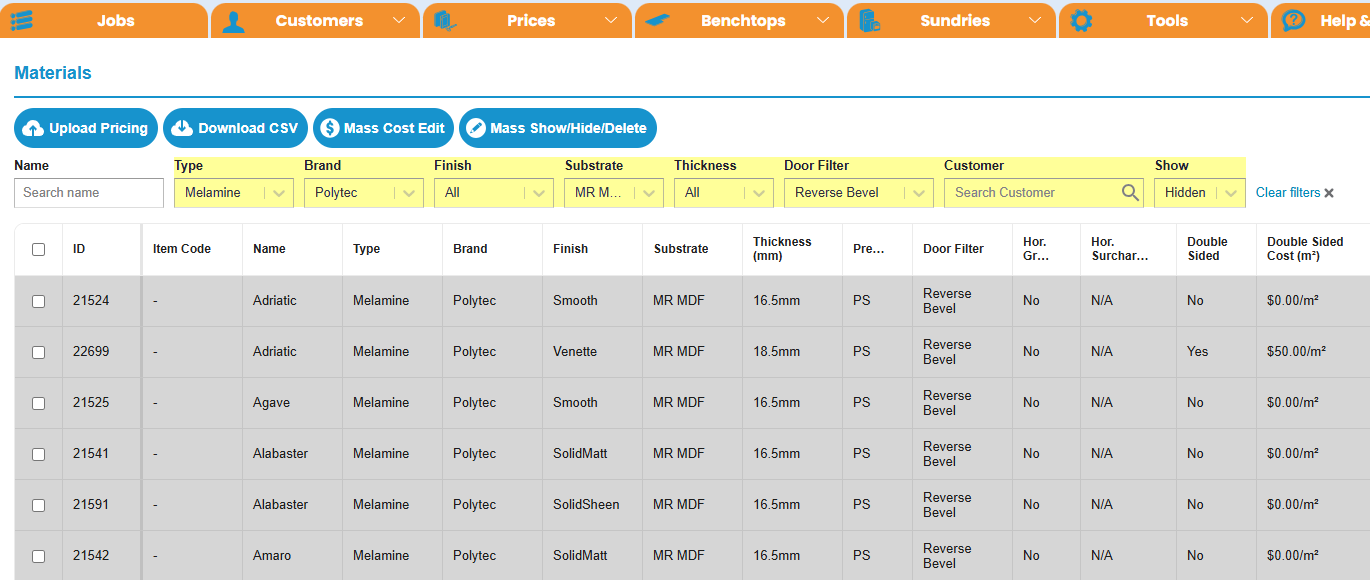
To add Reverse Bevel/Shark Nose Doors to your Online Portal using this method, start in Prices > Materials.
Select any filters that apply to the product range you wish to make 'Visible'. In this example, I will be enabling Reverse Bevel Doors for Polytec Melamine Materials.
Select the Door Filter called 'Reverse Bevel'. This allows you to set independent pricing for Reverse Bevel & Flat Panel materials. This method allows for more accurate pricing based on your manufacturing costs.
Once your filters are applied, you can use the 'Mass Show/Hide/Delete' tool to quickly set all of these options to Visible.

Edges
Now, head over to Prices > Edges.
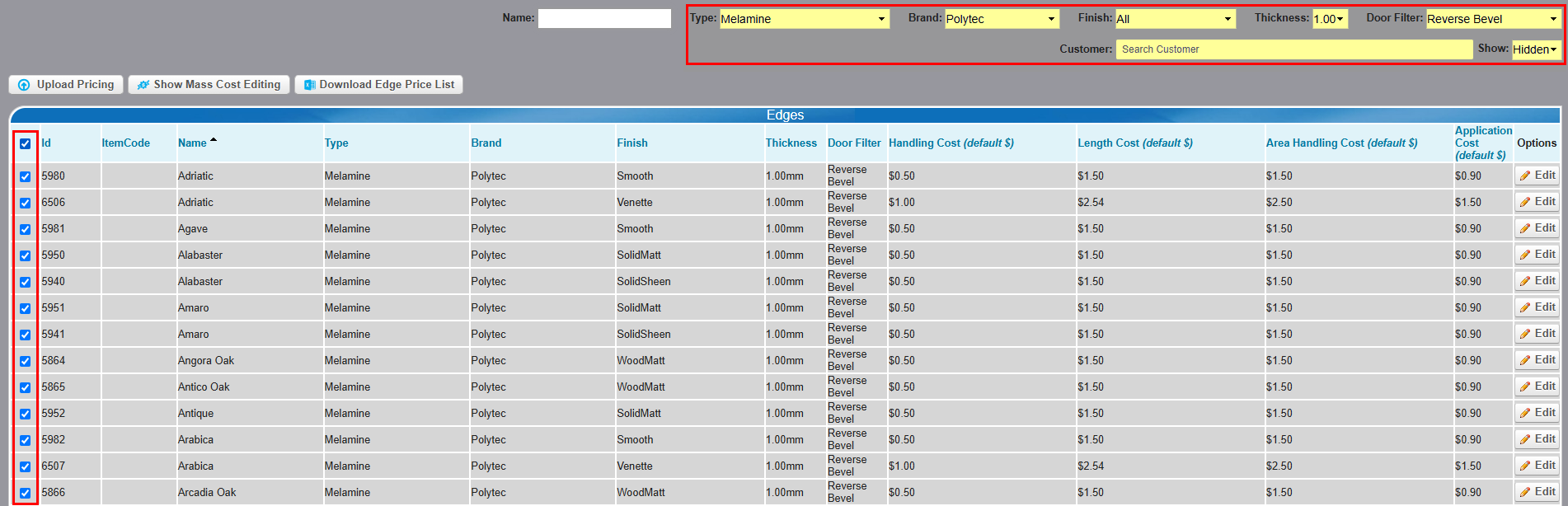
Use the filters to find all the matching edges for your new material selection. In this example, I want to turn on all Polytec Edges using the 'Reverse Bevel' Door Filter.
Similar to the Reverse Bevel Materials, this method allows you to set pricing for Reverse Bevel Edges independent from their Flat Panel counterpart.
Use the tickboxes to select specific Edges, and then set them to 'Visible'.
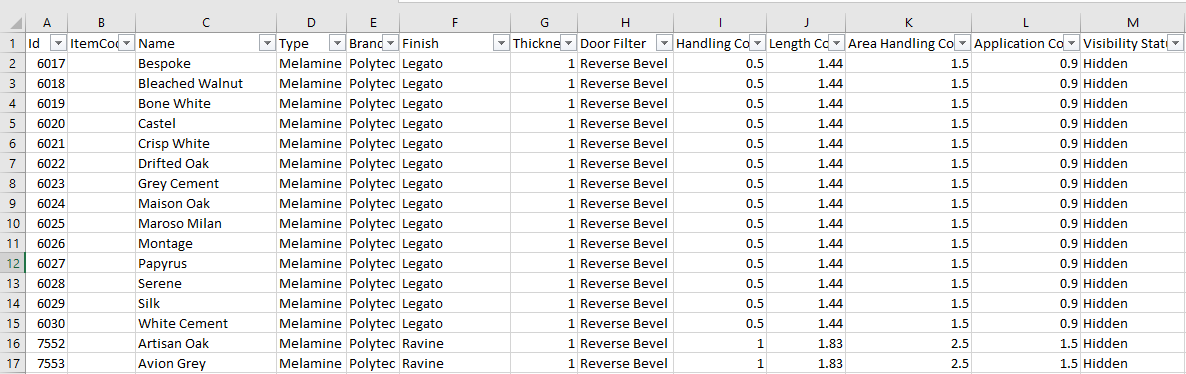
Alternatively, use the 'Download Edge Price List' tool to export your current filter results and edit your product availability via Excel. This is often the most efficient way to edit availability for a specific product offering.
Door/Drawer Faces
Next, go to Prices > Door & Drawer Faces
Use the filters to find all 'Reverse Bevel' Doors. There are 2 options to choose from, depending on your preferred name for this product: Reverse Bevel or Shark Nose. Choose only 1.

Painted Doors
If you wish to offer Polyurethane Painted Reverse Bevel doors, repeat the steps listed above with a few small changes:
- Enable the 'Paint Door Sharknose' Door in Door/Drawer Faces.
- Enable Materials using the 'Paint Door' door filter, for example: 30989 Custom Colour (Paint Door)
- Enable any Edges you want available for ordering on Painted Doors. This can be useful if a customer wants a Sharknose Door with a 2mm Pencil Round on all other edges.



2. Setting your Pricing
Reverse Bevel Pricing works the same as pricing for Flat Panel materials. If you wish to set alternate pricing for Reverse Bevel products, you can do so in 3 separate places:
- Materials
- Edges
- Door/Drawer Faces
If you wish to charge different m² costing for Reverse Bevel materials, you can do so by editing the Area Cost (m²) field in 'Materials'
If you wish to charge per linear meter for Edges, you can do so by using the 'Length Cost (LC)' field in 'Edges'. This will price for all edges applied to the panel, not just the Reverse Bevel Edge, so consider that when you set your pricing.
If you wish to charge the same amount for materials and edges, but charge an alternate amount for the Reverse Bevel Door Profile, you can do so in Door/Drawer Faces, by allocating higher costs to fields such as 'Handling Cost' or 'Machining Cost'.
3. Customer Portal
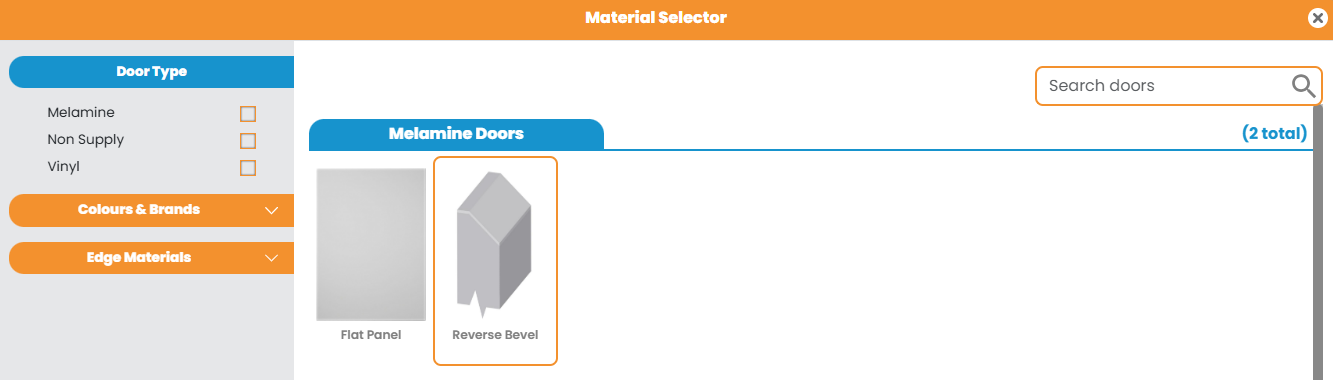
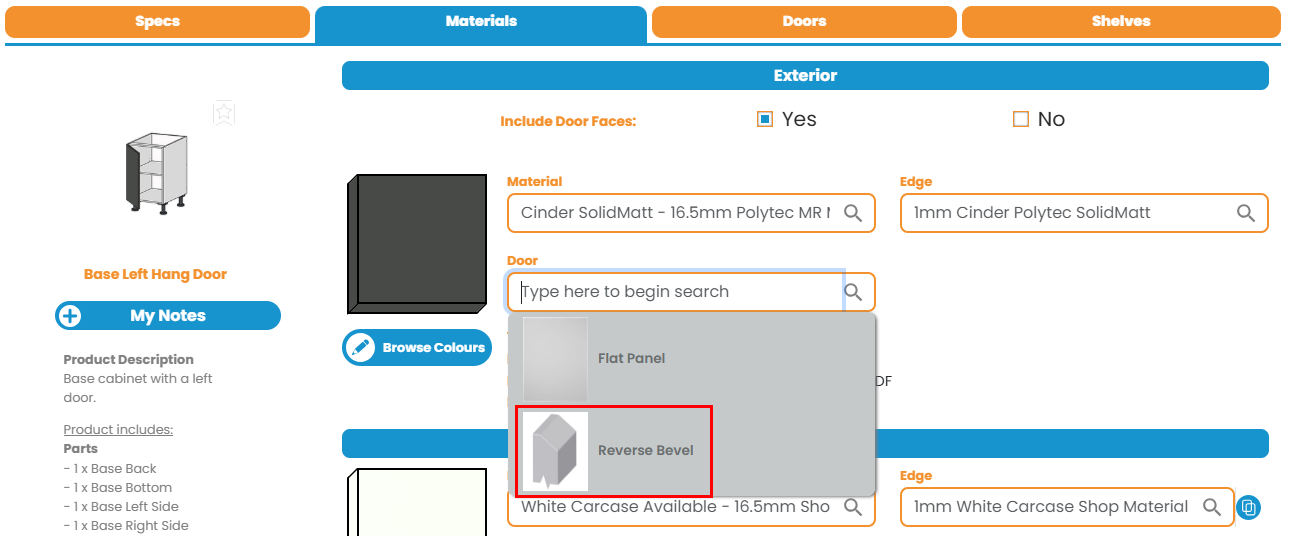
Your Customer Portal should now display an additional selectable Door Profile for Melamine materials.
This can be selected in the Material Selector menu, or in the Materials tab on a product:
If you require additional assistance with Material Configuration, please contact support@cabinetsbycomputer.com
Was this article helpful?
That’s Great!
Thank you for your feedback
Sorry! We couldn't be helpful
Thank you for your feedback
Feedback sent
We appreciate your effort and will try to fix the article