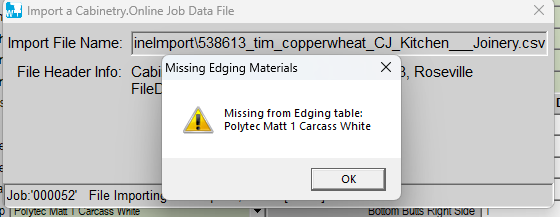
If this message appears when trying to import a job into WoodCAM it means that the material being used in the job isn't in the database.
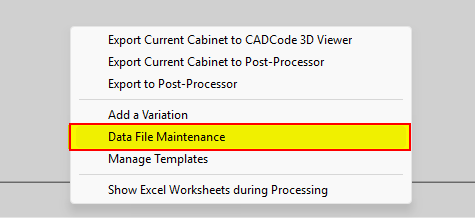
Step 1: First you need to access the database.
You can do this by right clicking in WoodCAM and selecting Data File Maintenance.
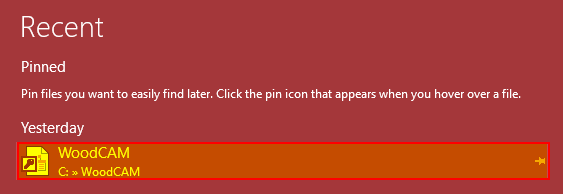
Step 2: Then select WoodCAM.
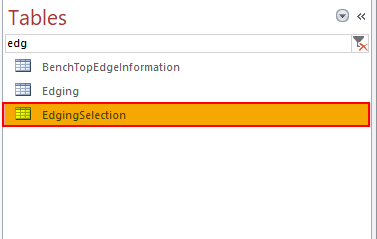
Step 3: In the tables section search EdgingSelection.
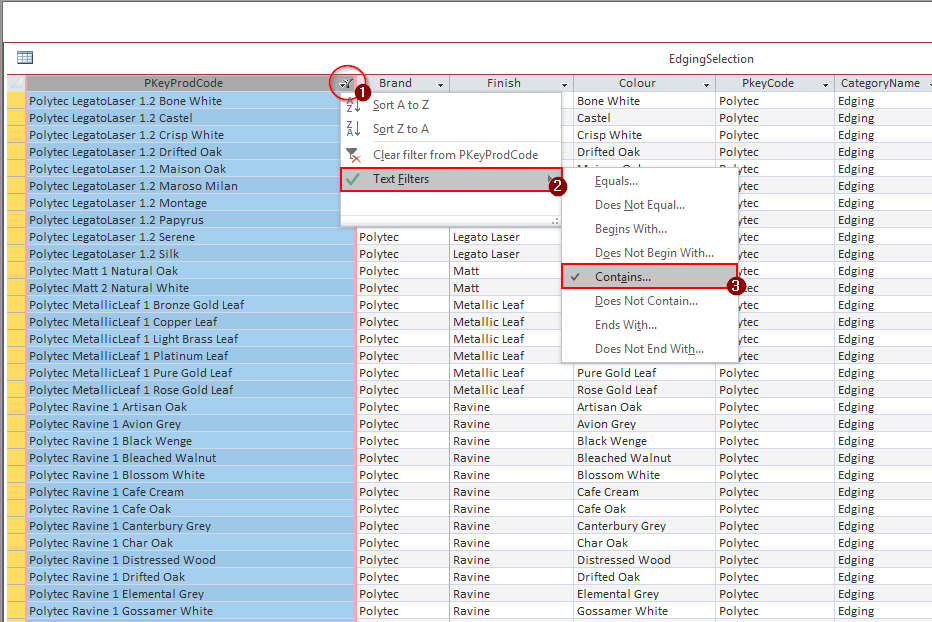
Step 4: Search for a similar product by going to the top of the first field labelled 'PKeyProdCode'.
Select Filter > Text Filters > Contains.
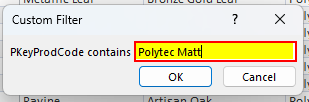
Step 5: Search the name of the product.
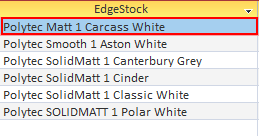
Step 6: Now you'll have a list of similar products.
You'll want to copy one by selecting it to the left of the name, and clicking Ctrl + C

Step 7: Now hit select New Blank Record

Step 8: Once a new blank record is present paste the product in and change the following fields with the new details of the edging.
- Description
- Finish
- Colour
- EdgeStock

Step 9: After you've finished you'll need to copy the newly added material and go to the edging table.
Select the New Blank Record again and paste.


Step 10: You can now close the database.
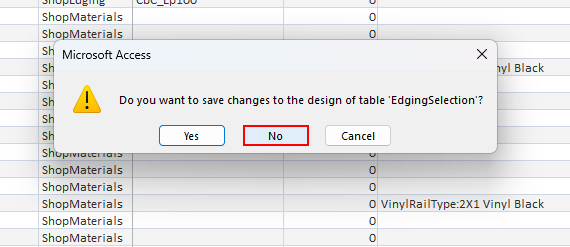
(When exiting remember to click no when asked if you would like to save, as the database is updated live).
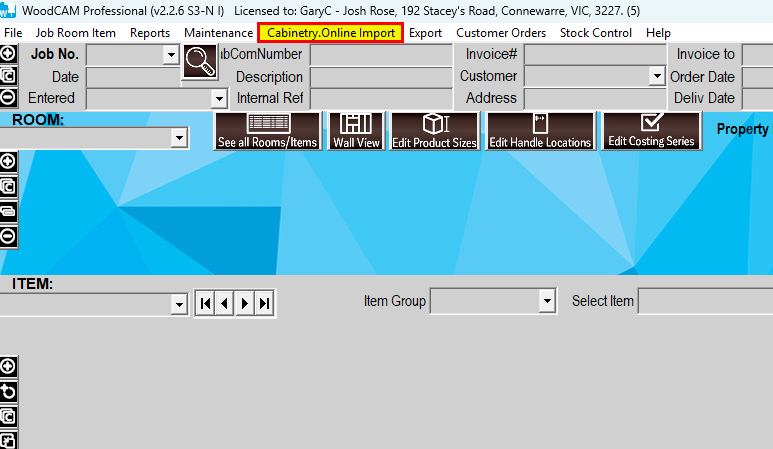
Step 11: Go back to WoodCAM and re-import the job and the new material will now be available.
Was this article helpful?
That’s Great!
Thank you for your feedback
Sorry! We couldn't be helpful
Thank you for your feedback
Feedback sent
We appreciate your effort and will try to fix the article