Alerts on Login:
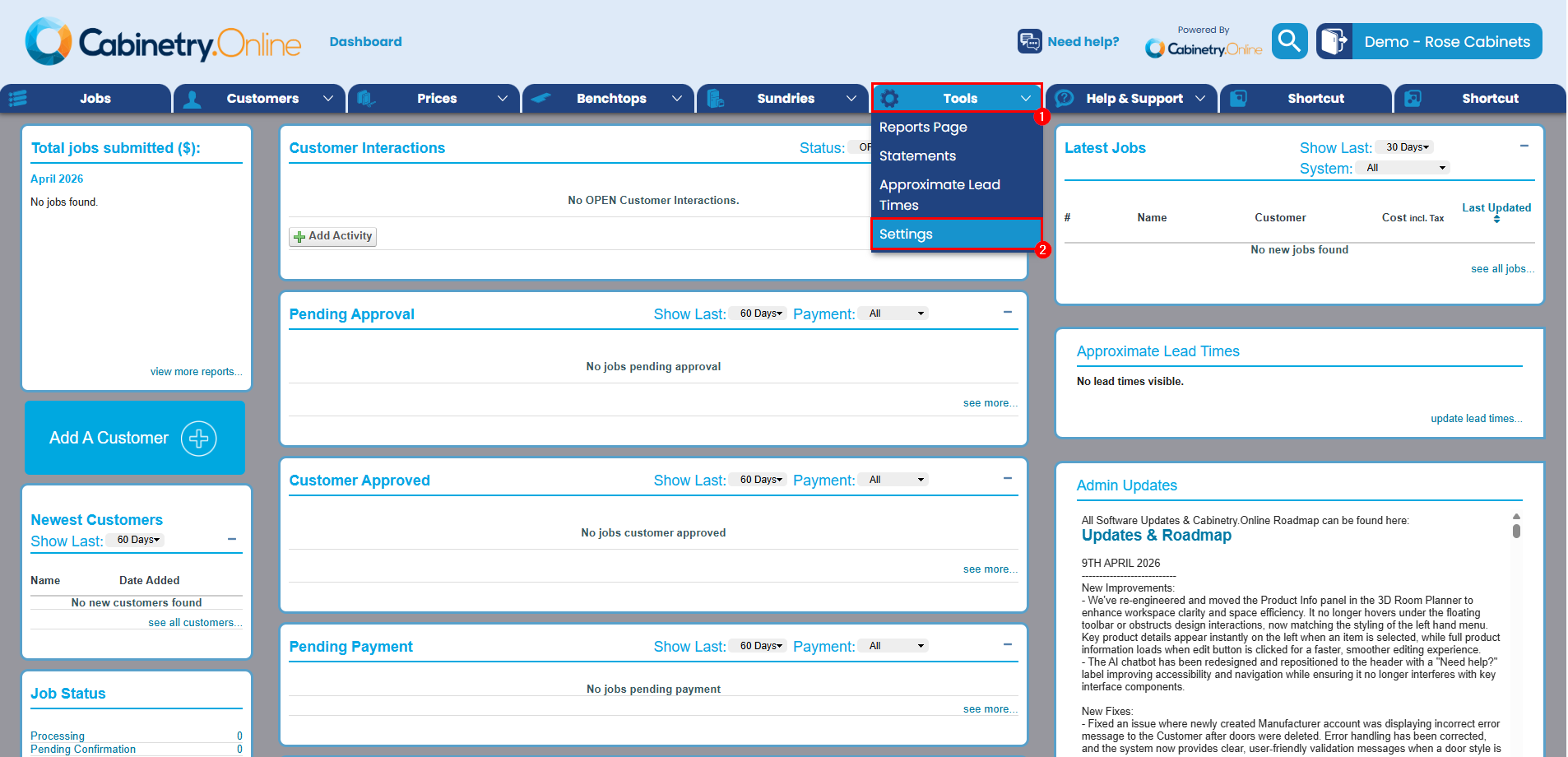
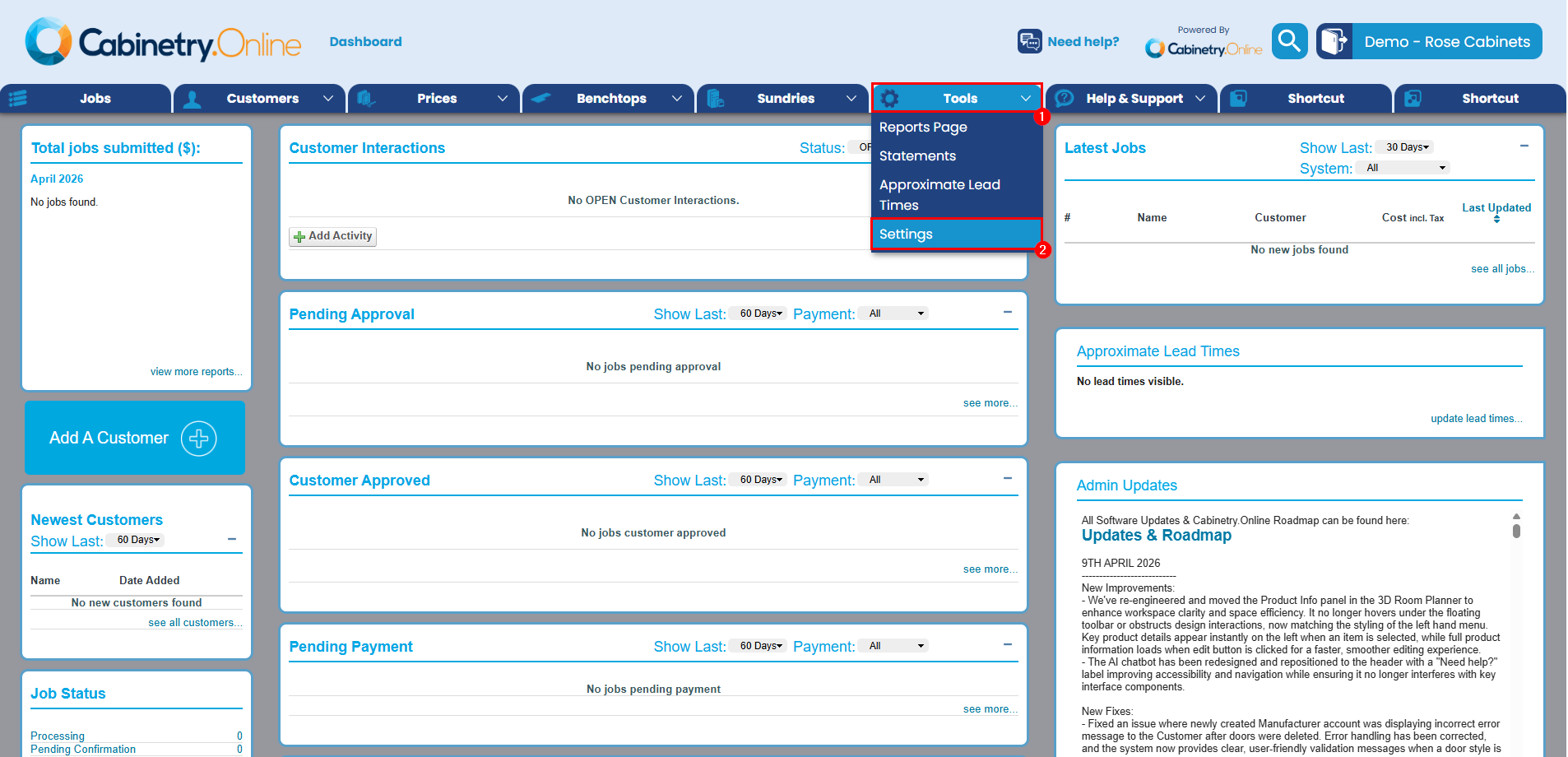
Step 1: From the dashboard select Tools - Settings
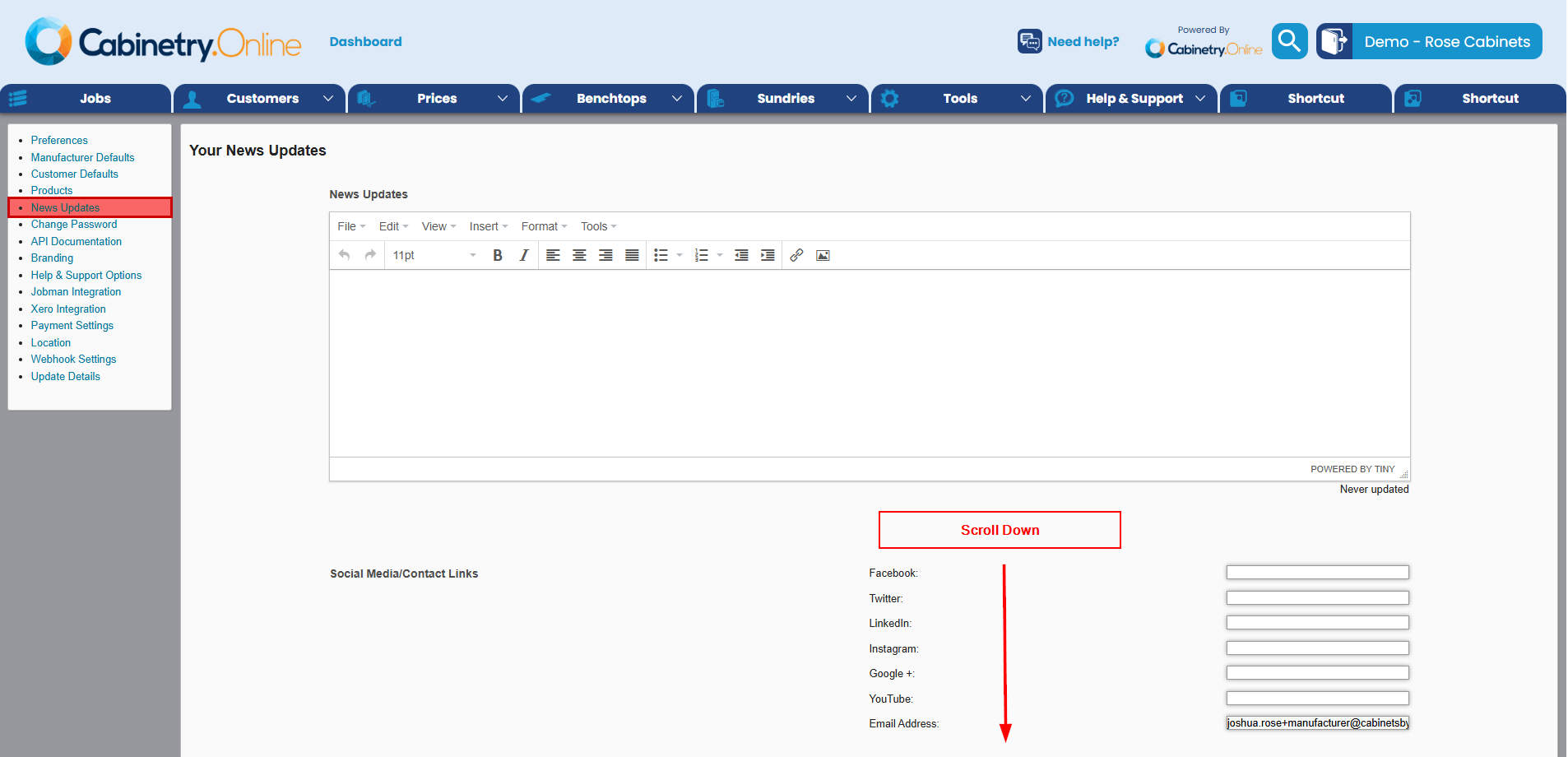
Step 2: From here select News Updates and scroll to the bottom to find Alert Customer on Login!
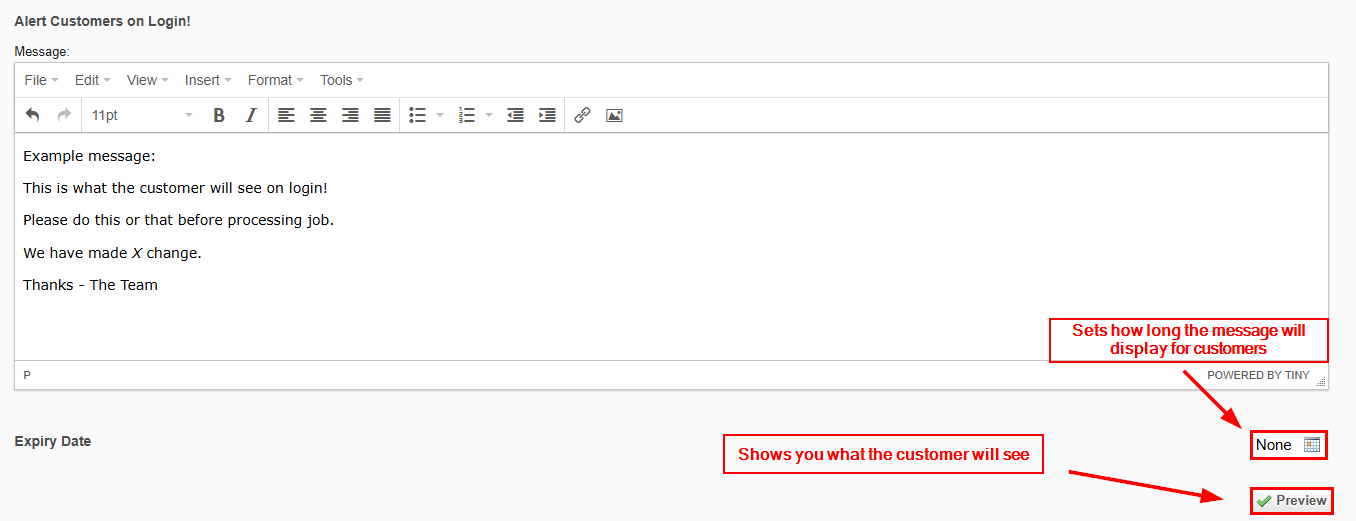
Step 3: Now you can enter your desired message, set the expiration of that message, and preview what it will look like for customers
Step 4: Choose Send Alert to broadcast this message to your customers
You can verify this by viewing your Active Messages section below.
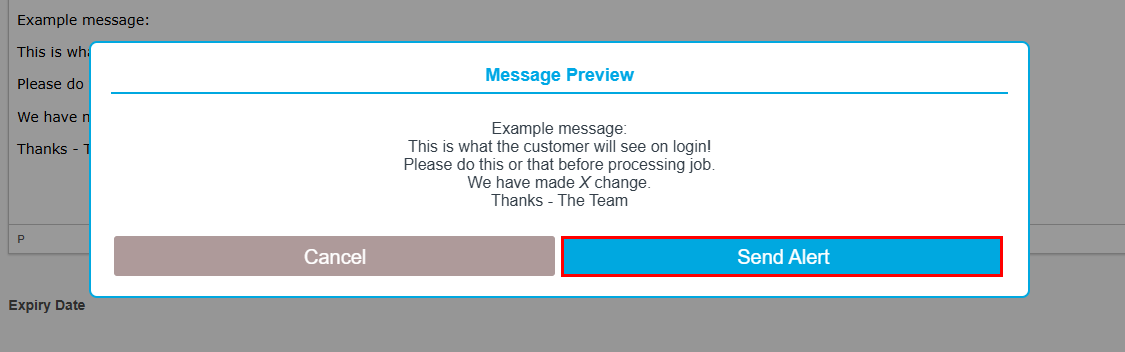
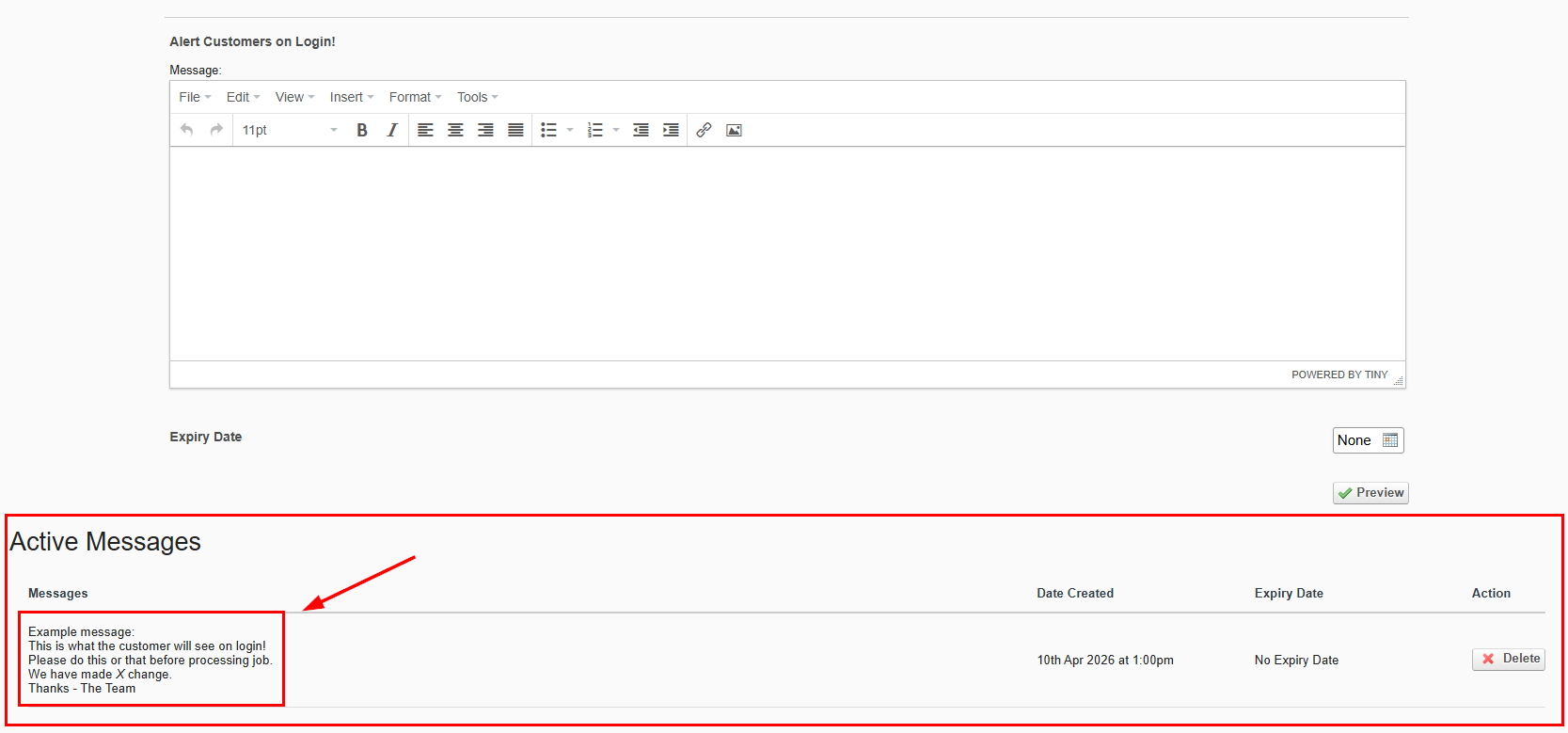
This is what the customer will see on login:
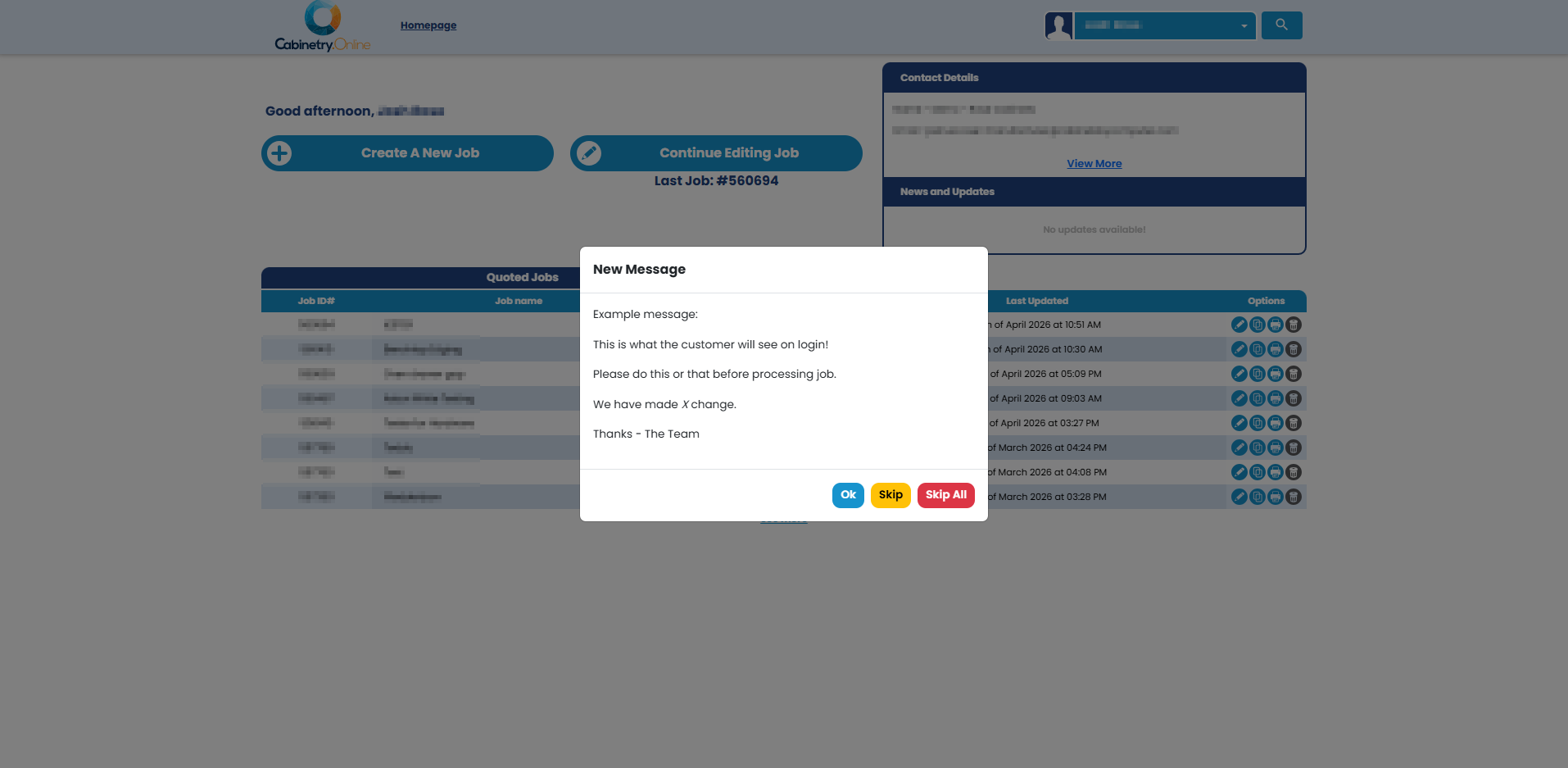
This will only display for active customers not brand new ones
Alerts on Submission:
You can also set alerts for when a customers submits a job.
This will display every time a customer submits a job and you must turn it on or off manually, there are no expiry dates.
Step 1: From the dashboard select Tools - Settings
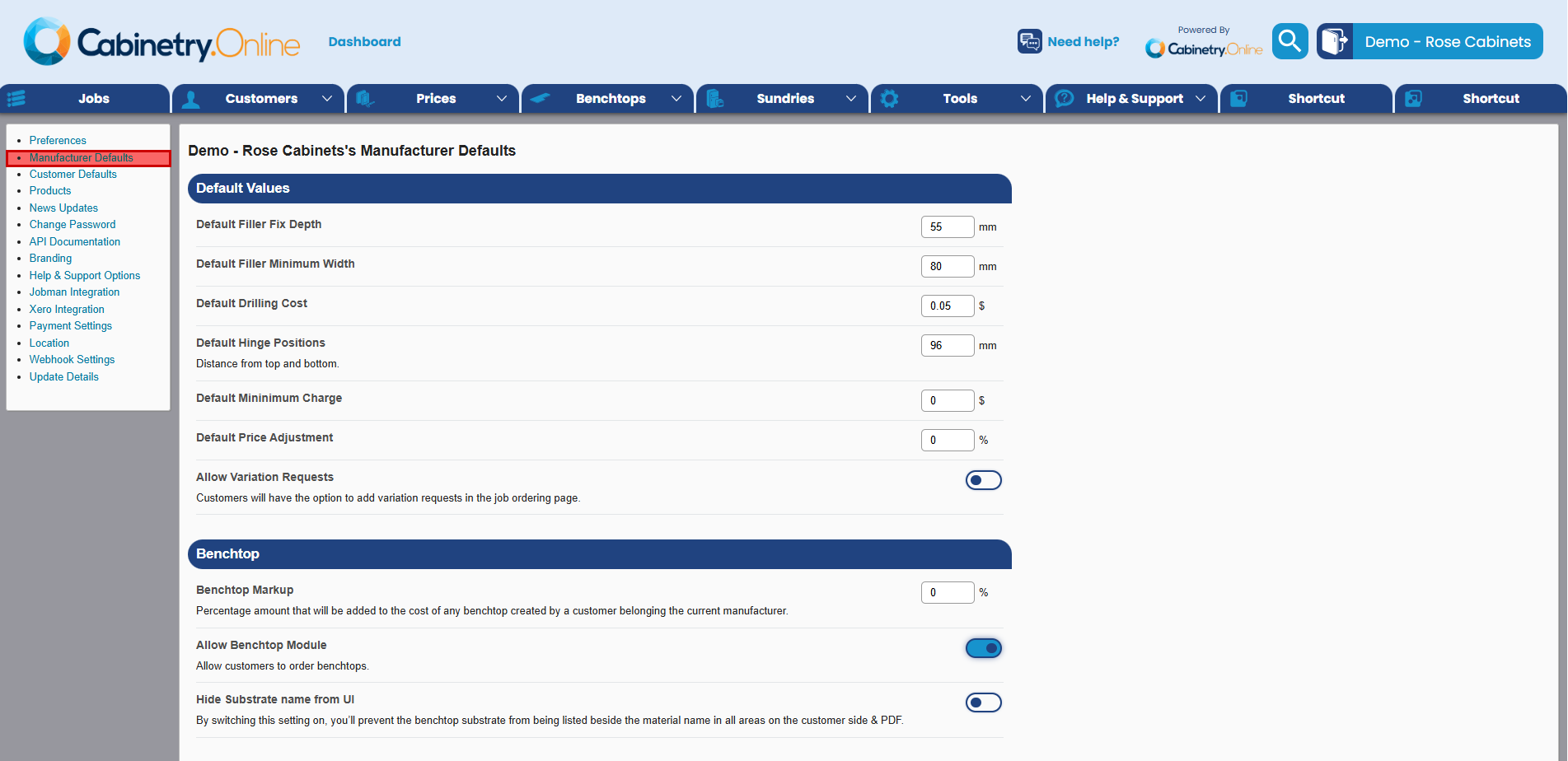
Step 2: Now choose Manufacturer Settings and scroll down to the very bottom where it says Job Submission Prompts
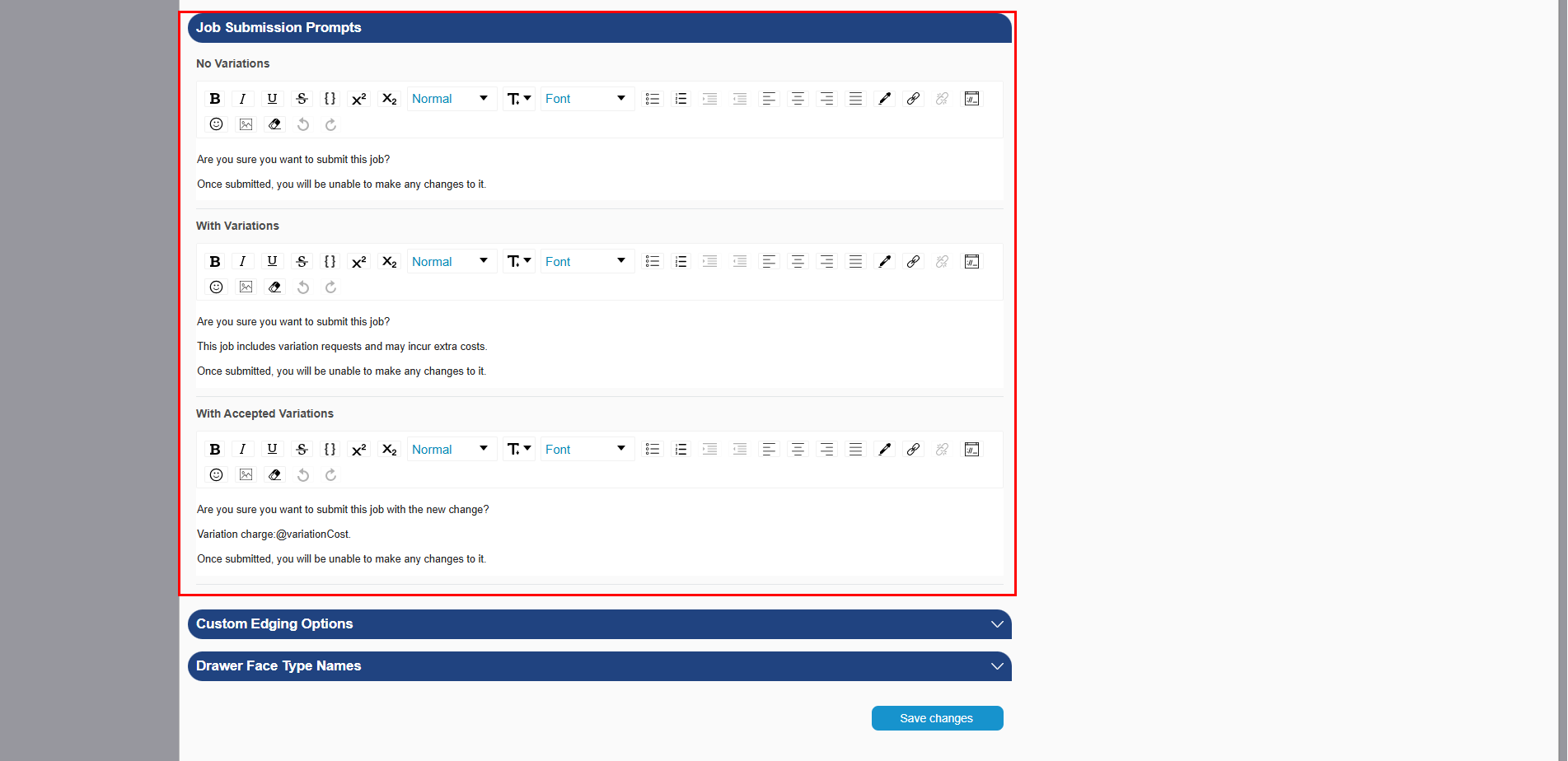
Step 3: From here you can choose whether you would like this message to display on jobs with:
No Variation
With Variations
With Accepted Variations

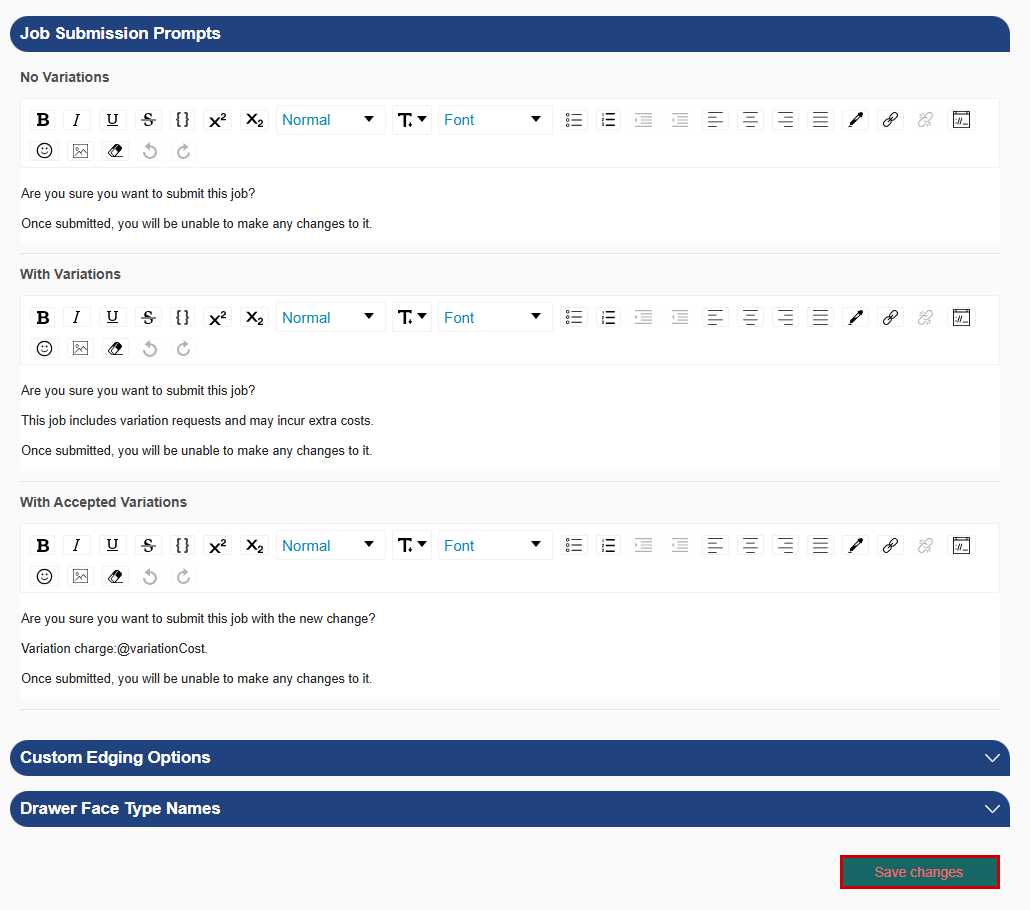
Step 4: Select Save changes for the changes to take effect
How to add photos to your alerts:
Additionally you can add photos to your alerts.
I will show you how to do that now.
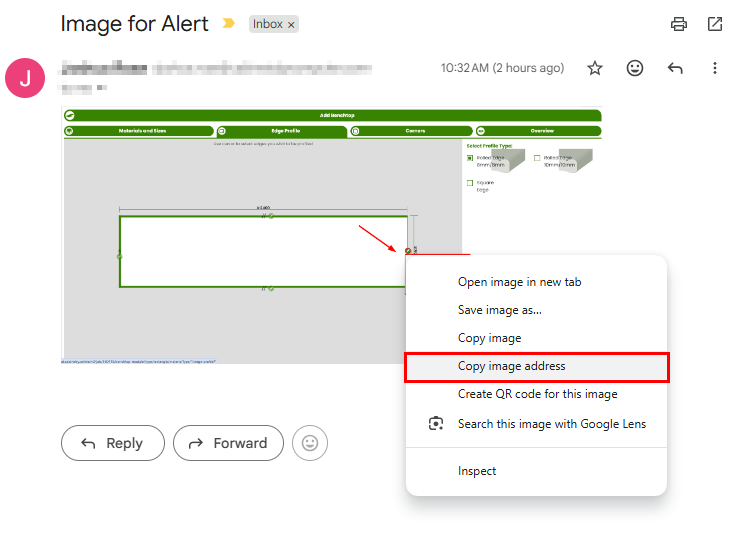
Step 1: You will need to copy the image address, you can do this by right clicking it in any browser and selecting
Copy image address
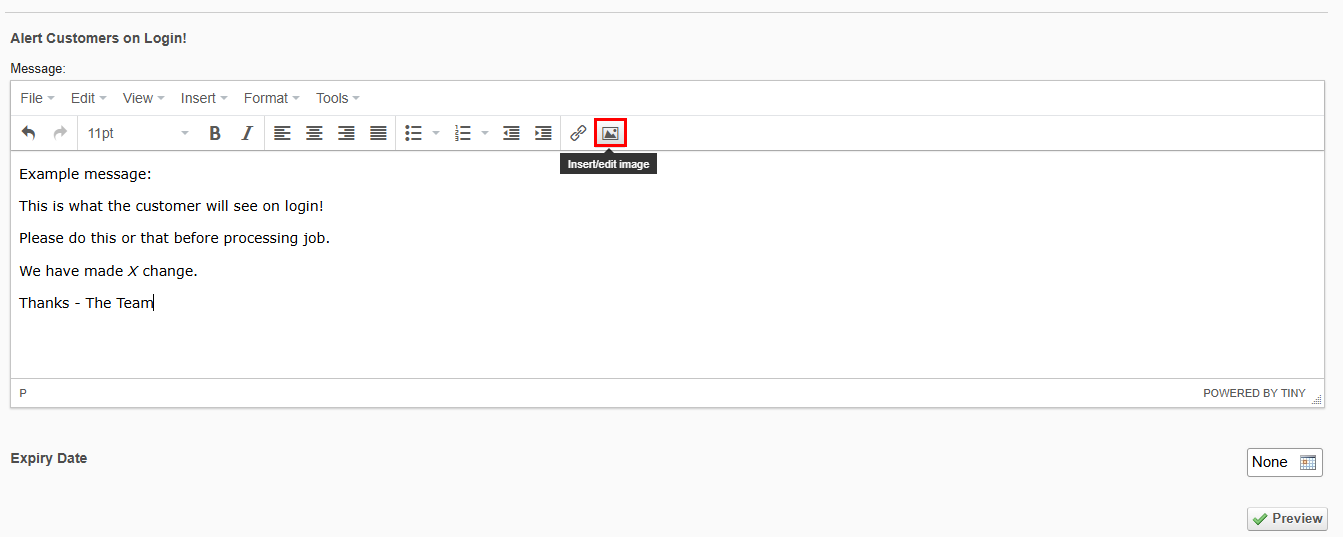
Step 2: Once you are on the Alert Customers on Login! page choose the image icon at the top
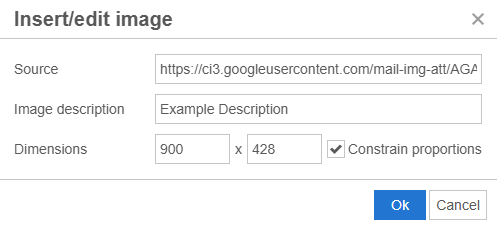
Step 3: This pop-up will open you will want to:
Source - Paste the copied image address
Description - You can leave this blank or add a description of the image
Dimensions - Choose the size you want the image to be
- (this is my recommended size)
The image will now be present in the alert message and will display for your customers on login.
Was this article helpful?
That’s Great!
Thank you for your feedback
Sorry! We couldn't be helpful
Thank you for your feedback
Feedback sent
We appreciate your effort and will try to fix the article