Within this guide you'll learn how to setup payments in your manufacturer dashboard.
Step 1. Enable the Job Confirmation Page
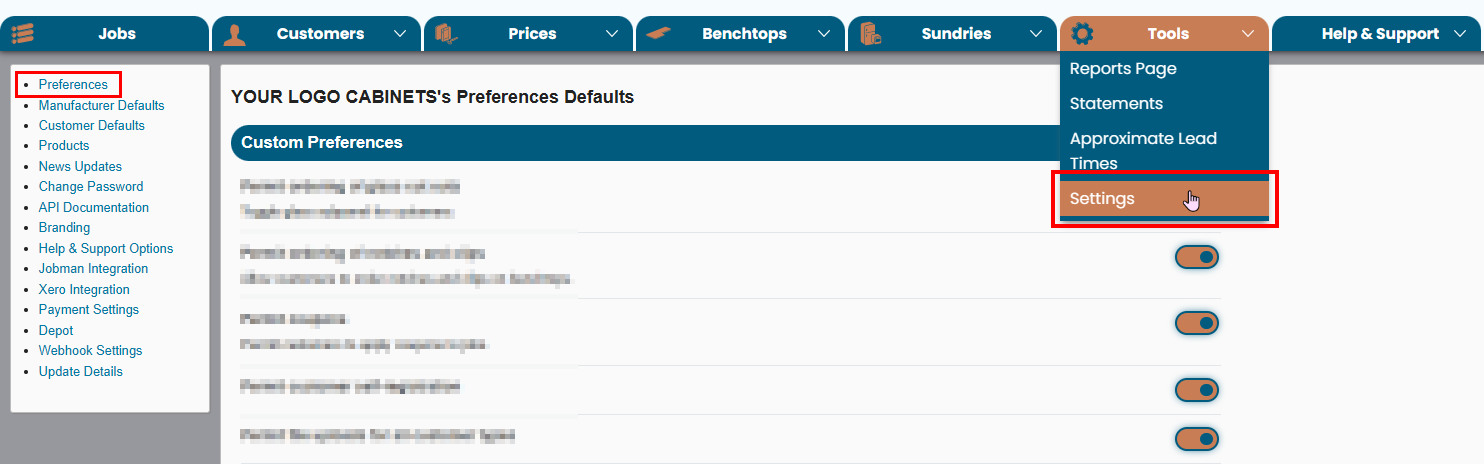
First, if you haven't enabled the setting Job Confirmation Page Before Submission yet, you'll need to head to Tools > Settings and click the Preferences option in the top left of your screen.
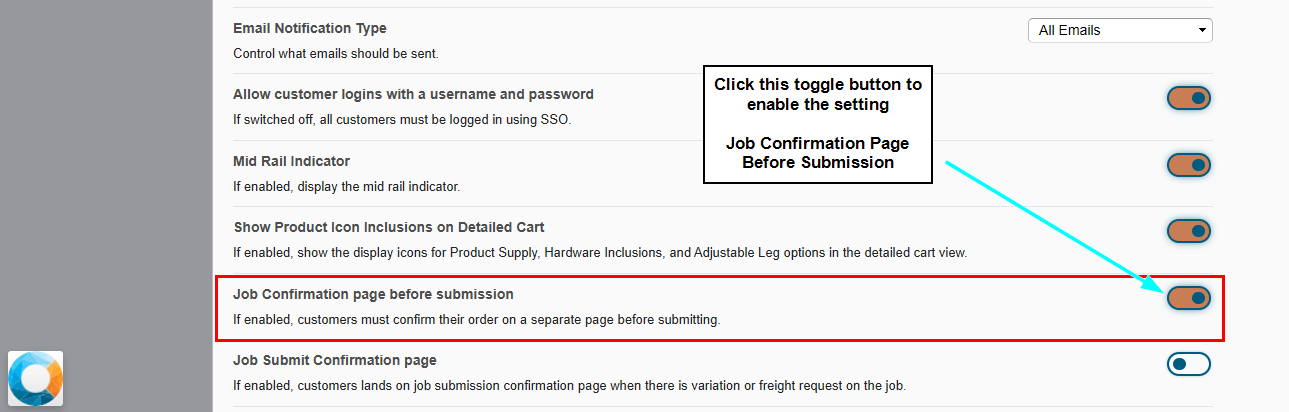
Navigate to Job Confirmation page before submission and enable the slider.
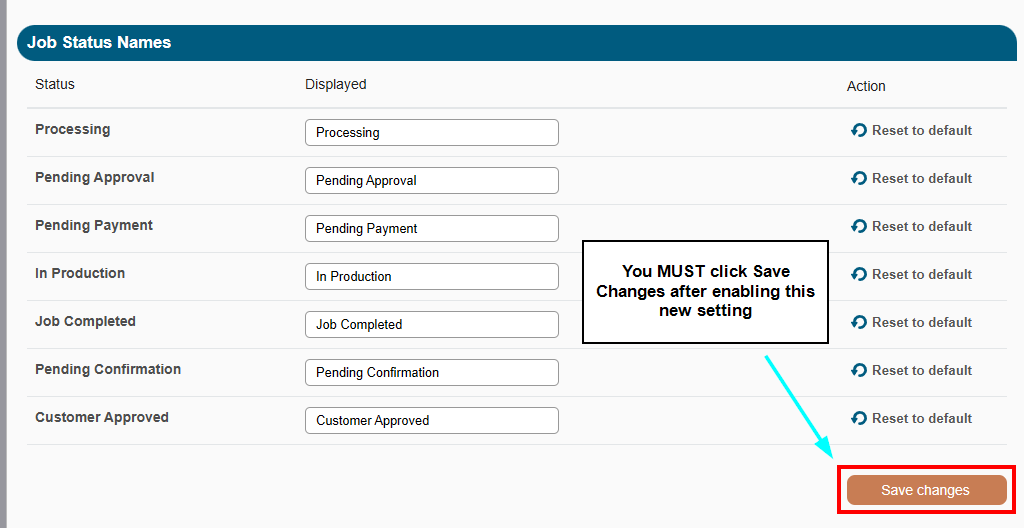
You must click Save Changes before this will be applied.
Step 2. Choose Payment Methods
On your Payment Settings page, you can choose which payment options will be available to your customers.
These options include the following:
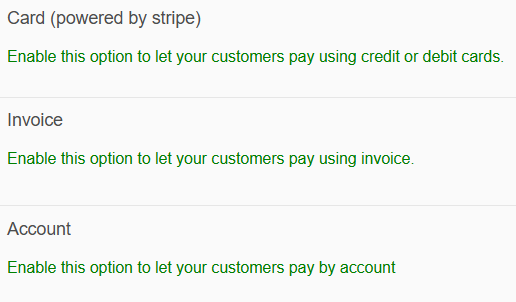
Card
- Customers can pay online using credit or debit cards via Stripe.
Invoice
- Customers place the order and pay later via bank transfer
Account
- Orders are placed on the customer's account and invoiced through your normal process
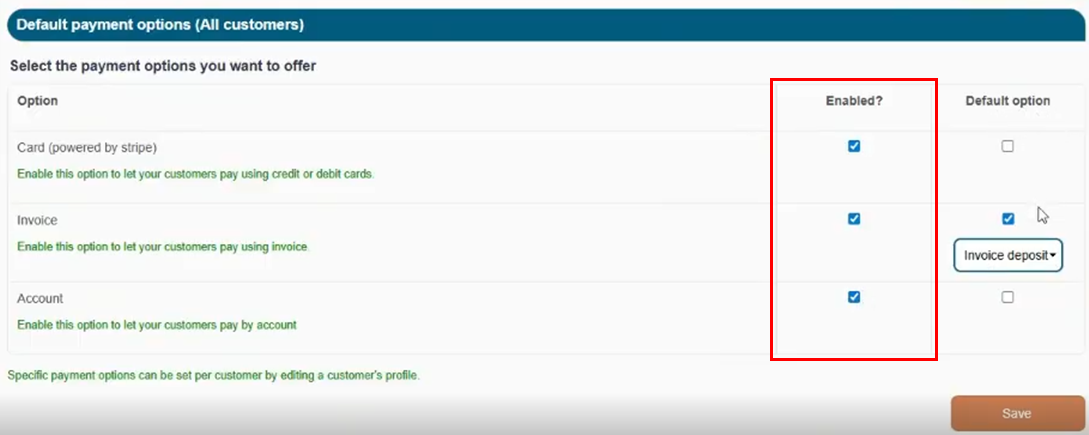
You can also select which of the above 3 methods are the default payment option shown to customers when they get to the payment page.
Default payment options
Manufacturers can configure which payment methods are available to customers by default:
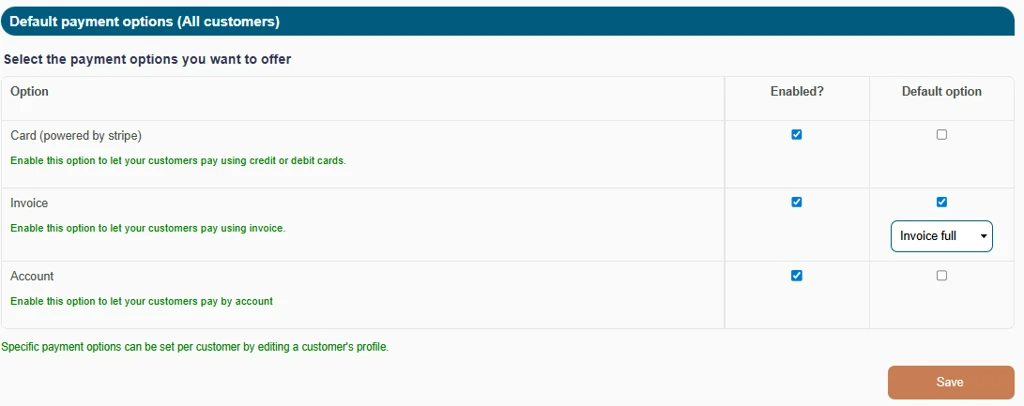
Each method has two controls:
Enabled: Determines whether the payment method is available to customers.
Default: Determines which payment option is pre-selected when the customer reaches the payment page.
Example
A manufacturer may choose to:
- Enable Card
- Enable Invoice
- Enable Account
- Set Invoice as the default option, with
Invoice Fullas the setting.
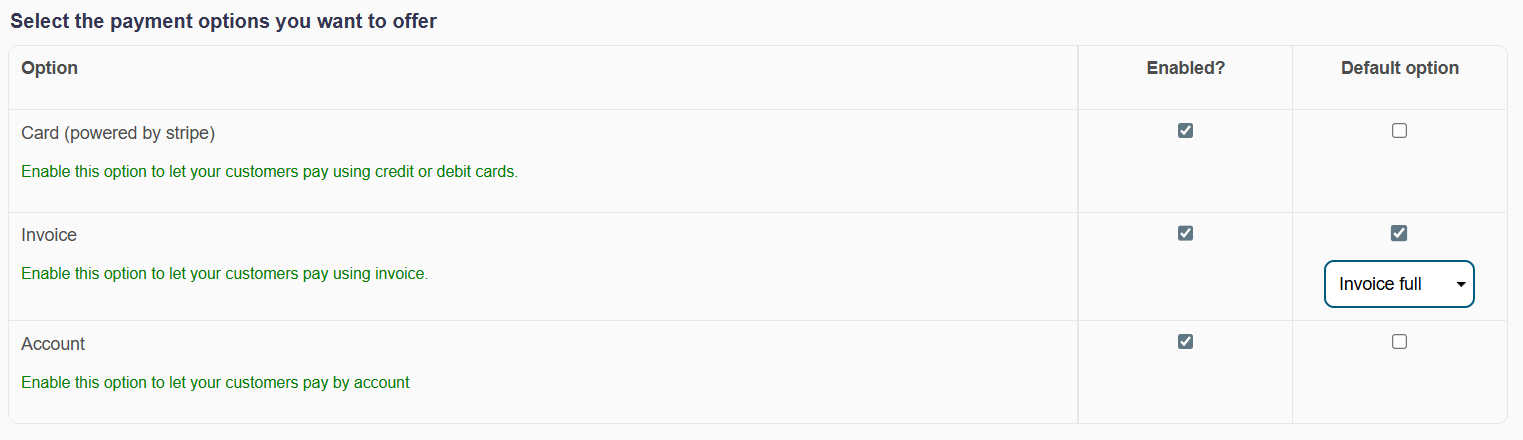
In that case, the customer would land on the payment page with Invoice pre-selected, defaulting to the ‘Pay in full’ option, but still have access to the other enabled methods.
You can enable all three of these options for your customers but only one of these can be the default payment method.
Step 4. Configure Deposit Rules
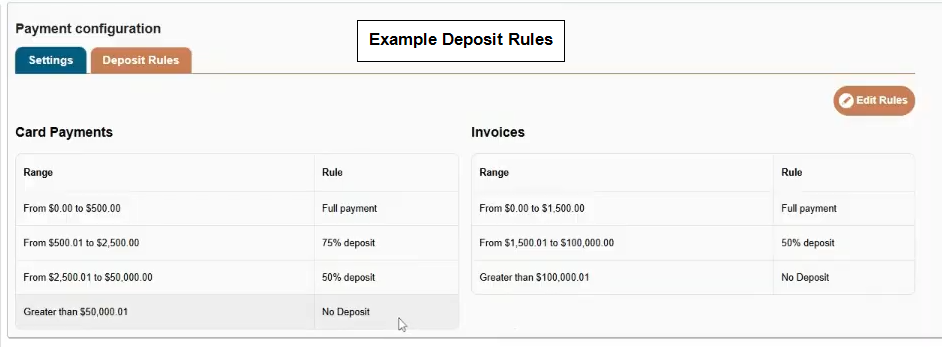
Deposit rules allow you to choose how much customers must pay when placing an order.
Click on the Deposit Rules tab next to the Settings on this page to view these configurations.
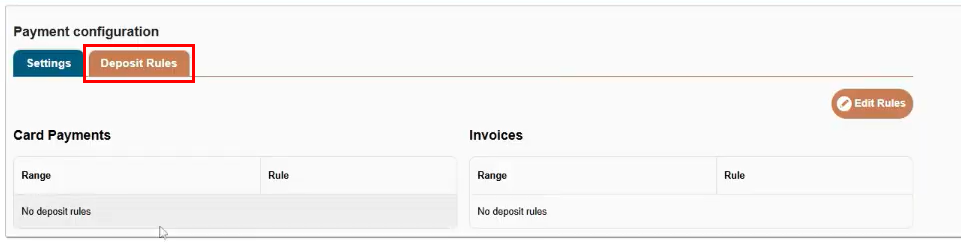
You can set rules based on job value, for example:
This allows you to secure a deposit for larger projects while still collecting full payment for smaller jobs.
Deposit rules can be configured separately for:
Card payments
Invoice payments
Both the Default Payments and the Deposit Rules can be overwritten on a per customer level, to learn how to do this, click here - Customising Payment Options for Specific Customers
Important points
- Card and Invoice can have different deposit rules
- Pay on Account does not support deposits
- if no deposit rules exist, the practical outcome is full payment required
Why separate rules matter
A manufacturer may wish to allow deposits for Invoice but not Card, or vice versa, depending on transaction costs and internal policy.
Was this article helpful?
That’s Great!
Thank you for your feedback
Sorry! We couldn't be helpful
Thank you for your feedback
Feedback sent
We appreciate your effort and will try to fix the article