Within this guide you'll learn how to setup Stripe payments in your manufacturer dashboard.
Step 1. Connect Stripe (for card payments)
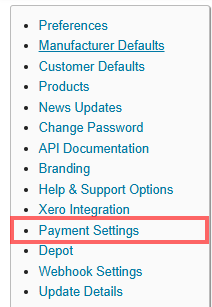
Navigate to Tools > Settings and click the Payment Settings page to enable the card payments setup.
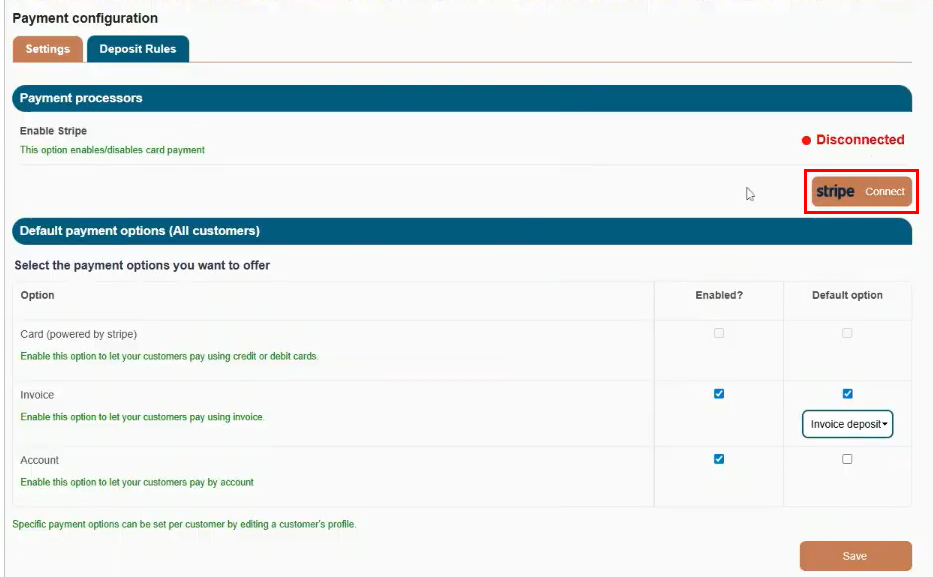
By default, the Stripe connection will be disconnected, to enable this setting, click the Stripe Connect button.
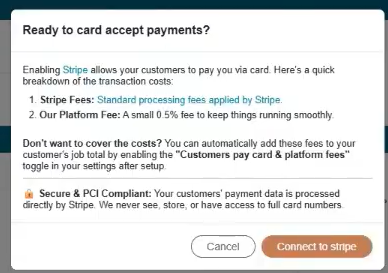
Once you click Stripe Connect, a pop-up will appear on your screen to advise you of some key details prior to enabling this setting. After reviewing the pop-up, select Connect to Stripe.
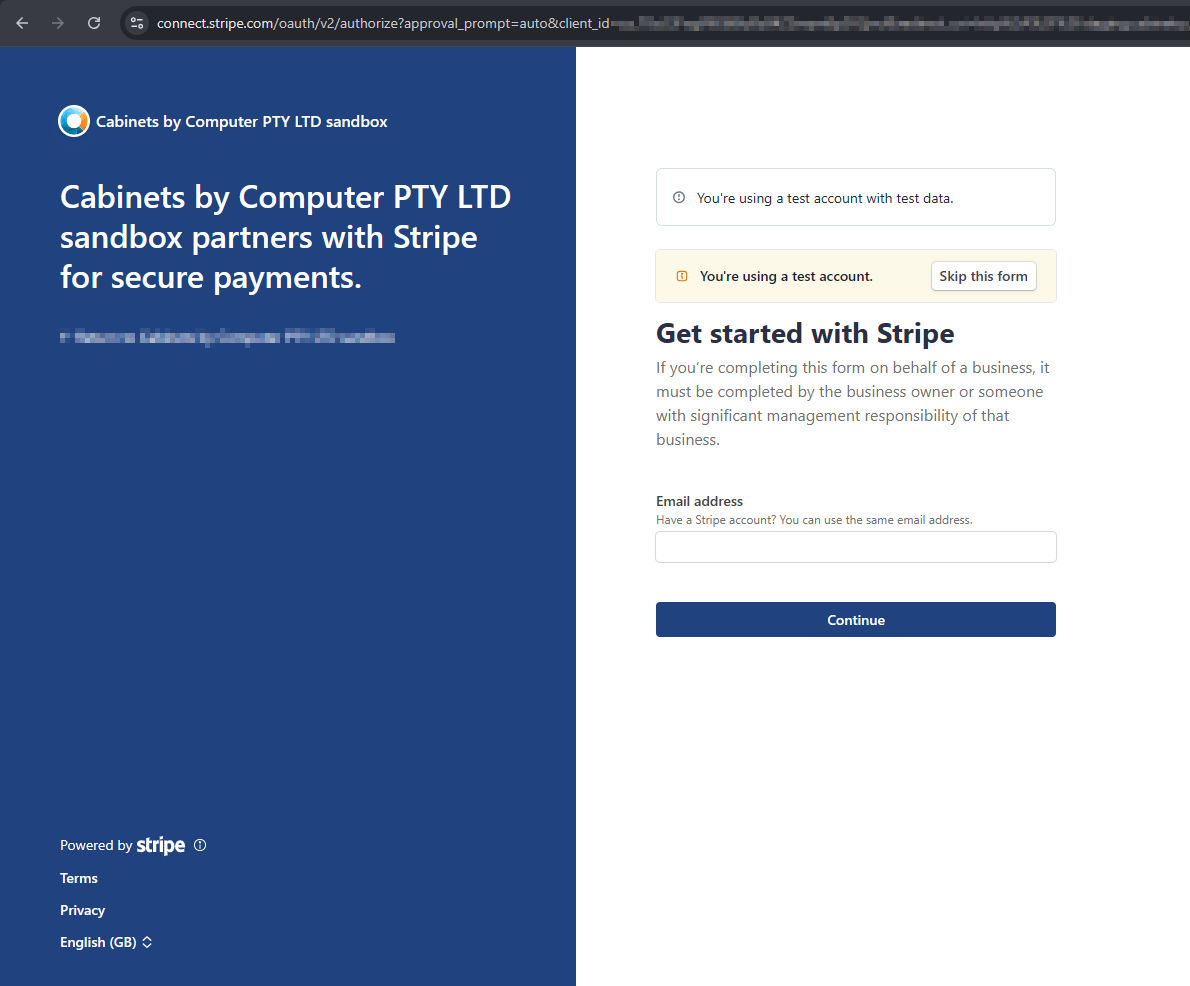
You'll then be redirected to Stripe to:
Sign into an existing account OR Create a new Stripe account
Once you've signed in or created an account, card payments will now be enabled on your portal.
Once connected:
- Stripe will show as Connected
- Card payments can be enabled as a payment option
- The manufacturer can proceed with card-related configuration

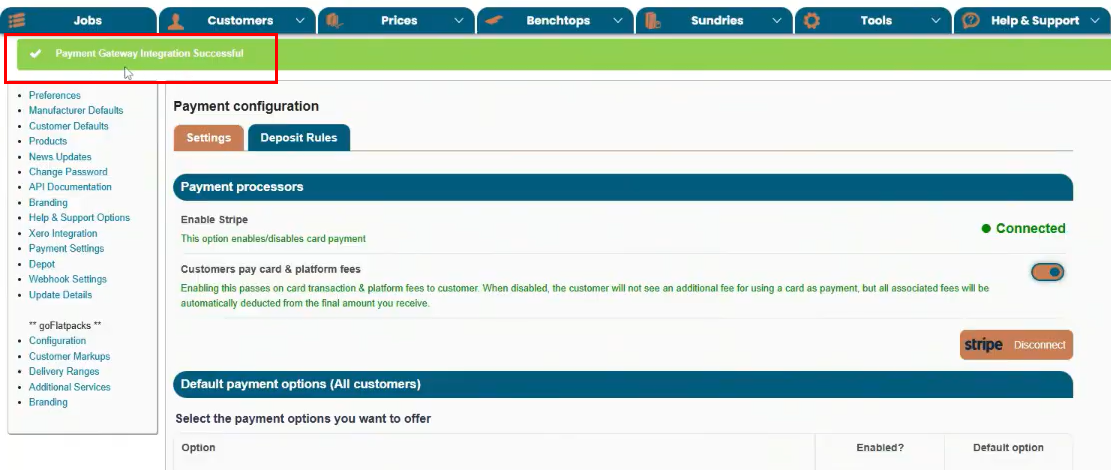
Fee handling:
Once Stripe is connected, the manufacturer can control whether customers pay:
- card processing fees
- platform fees
The toggle for customers to pay card & platform fees is enabled by default when Stripe is connected.
Enabling this passes on card transaction & platform fees to customer. When disabled, the customer will not see an additional fee for using a card as payment, but all associated fees will be automatically deducted from the final amount you receive.

If enabled: these fees are added to the customer’s payment total when paying by card
If disabled: the manufacturer absorbs those fees
Was this article helpful?
That’s Great!
Thank you for your feedback
Sorry! We couldn't be helpful
Thank you for your feedback
Feedback sent
We appreciate your effort and will try to fix the article