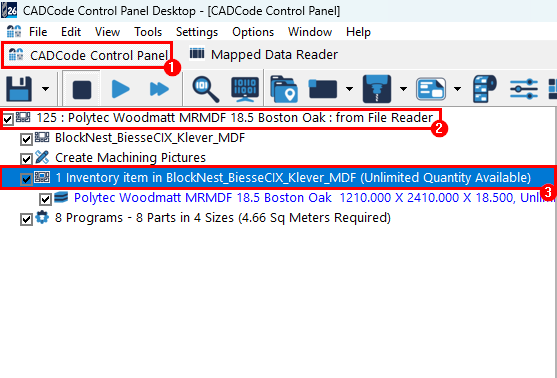
1 - While in the Control Panel of CADCode double click a Material > Inventory item.
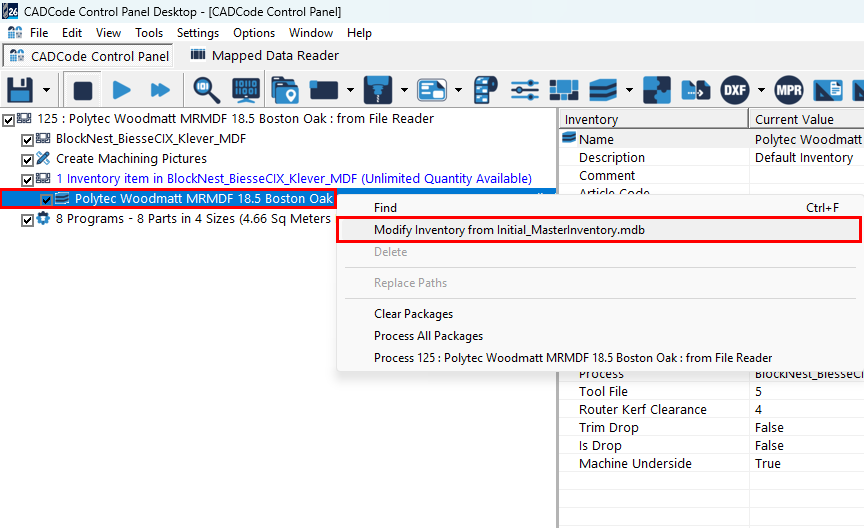
2 - Right click the current material stock and select Modify Inventory.
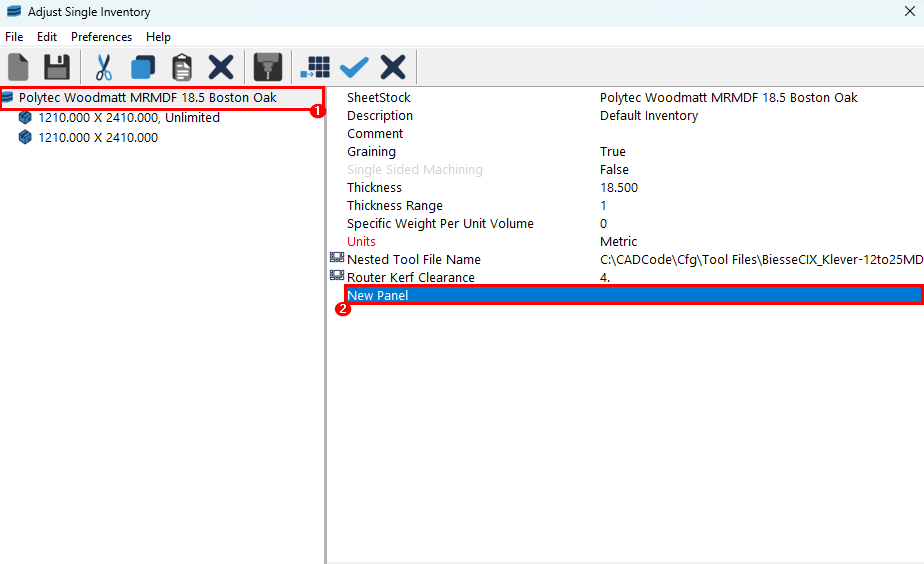
3 - Now select the header of the material, then select New Panel.
4 - You can now change the dimensions of this copy to that of the off cut.
(Make sure you hit enter instead of click off once you have made the change, otherwise the change will not save)
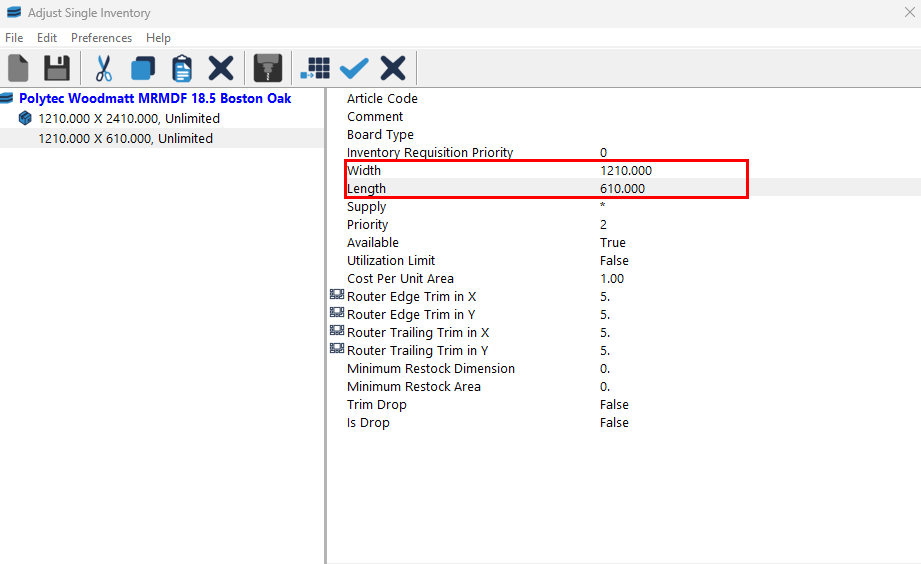
5 - These next few settings have to be set in this order, so the off cut isn't used in every job an unlimited amount of time
Supply - Enter how many off cuts you have at this size
Priority - This will determine whether the off cut is used before, or after the regular size board
1 = Before anything else
2 = Regular priority
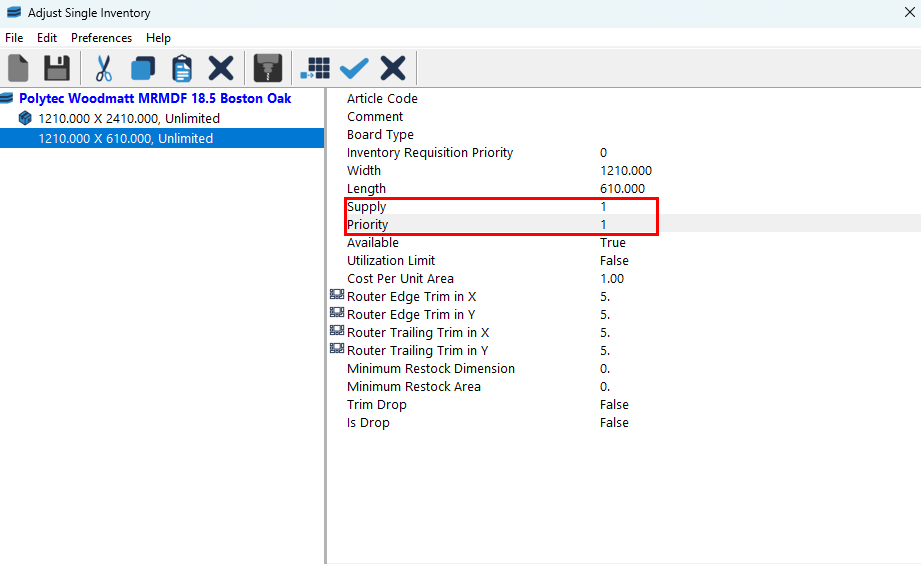
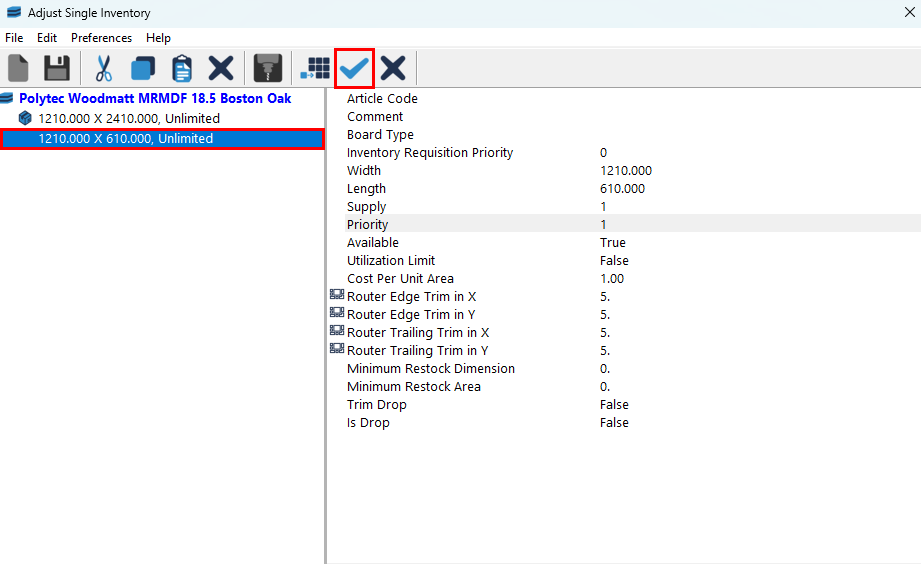
6 - To save these changes, you'll want to select the tick up the top right.
(Ensure you don't select merge, as this will add the material to your WoodCAM database)
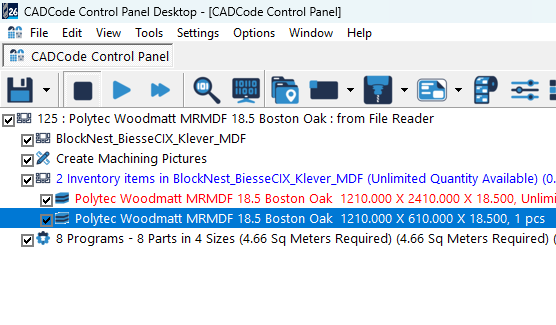
7 - You will now have the off cut in your CADCode inventory, and this off cut will be used before the regular size board.
Was this article helpful?
That’s Great!
Thank you for your feedback
Sorry! We couldn't be helpful
Thank you for your feedback
Feedback sent
We appreciate your effort and will try to fix the article