Within this guide you'll learn how to setup Stripe payments in your manufacturer dashboard.
Step 1. Enable the Job Confirmation Page
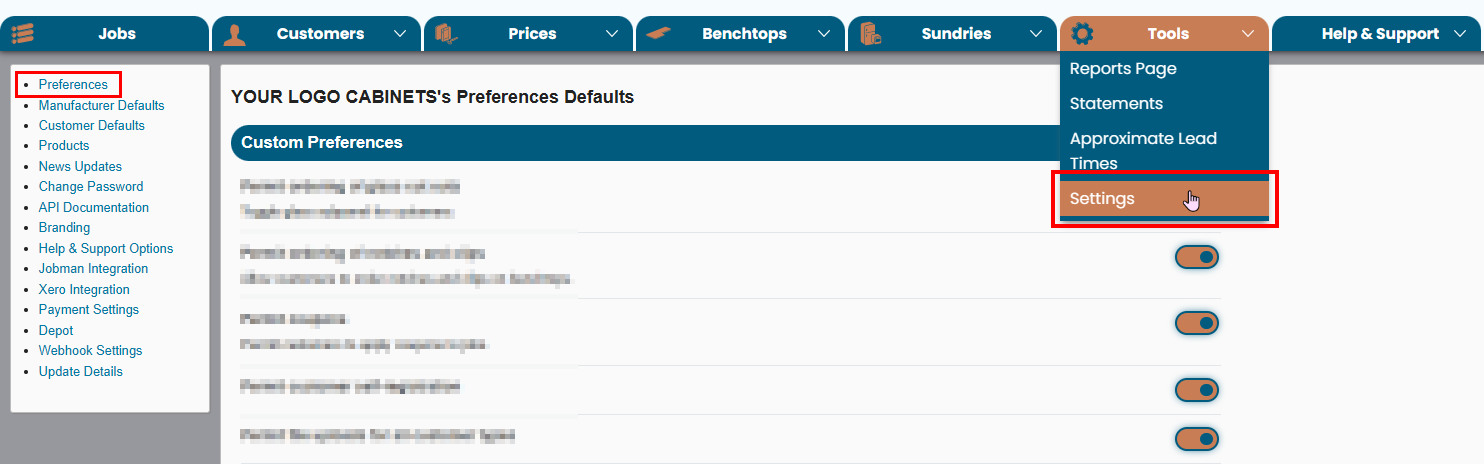
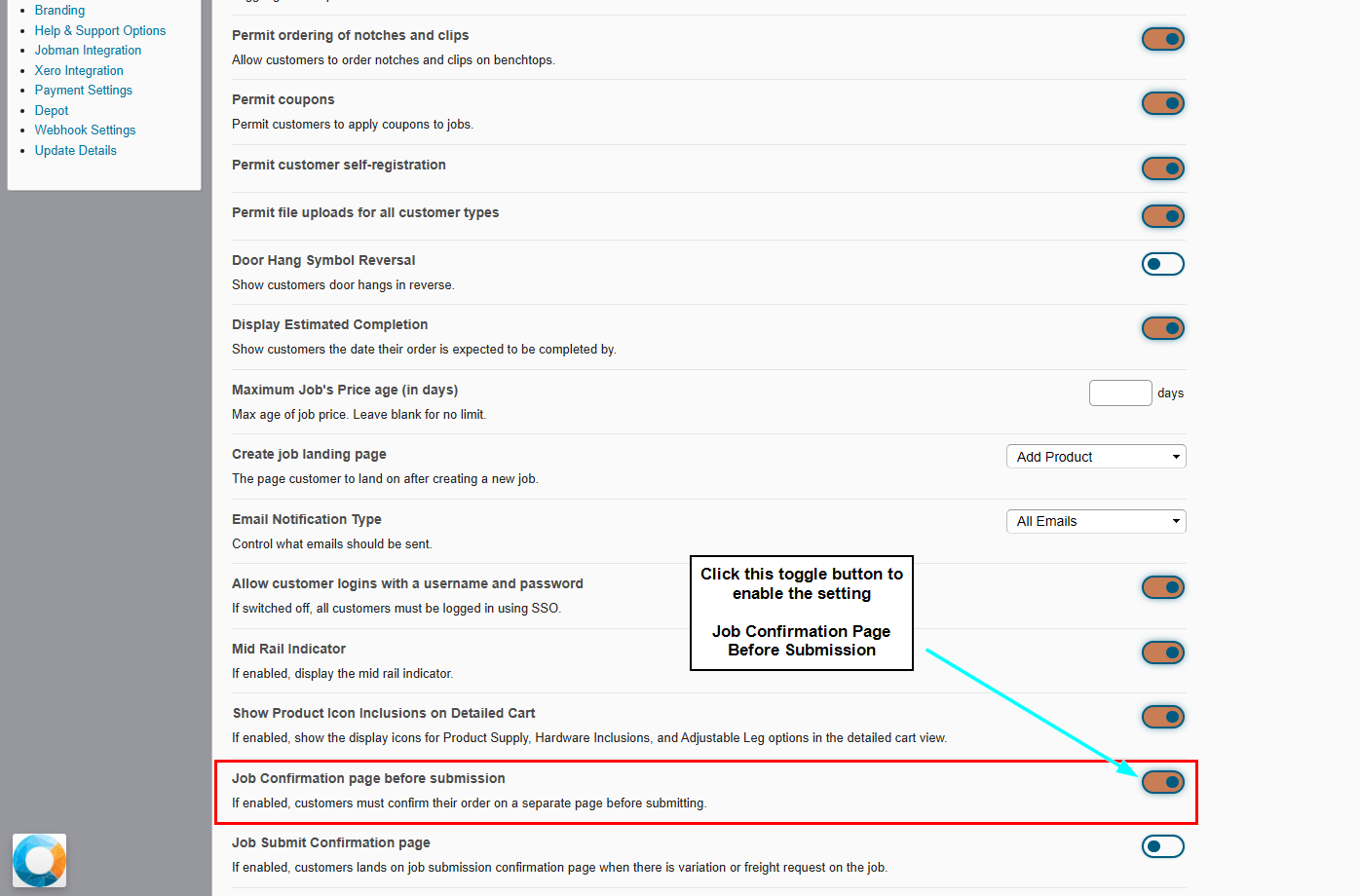
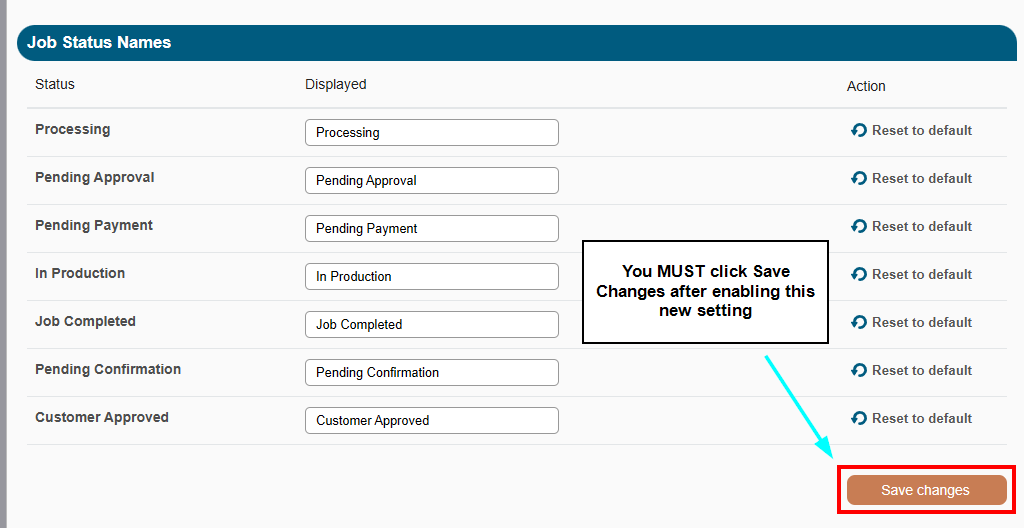
First, if you haven't enabled the setting Job Confirmation Page Before Submission yet, you'll need to head to your Manufacturer Settings page and click the Preferences option in the top left of your screen.
(Reference Image 1)
(Reference Image 2)
(Reference Image 3)
Step 2. Connect Stripe (for card payments)
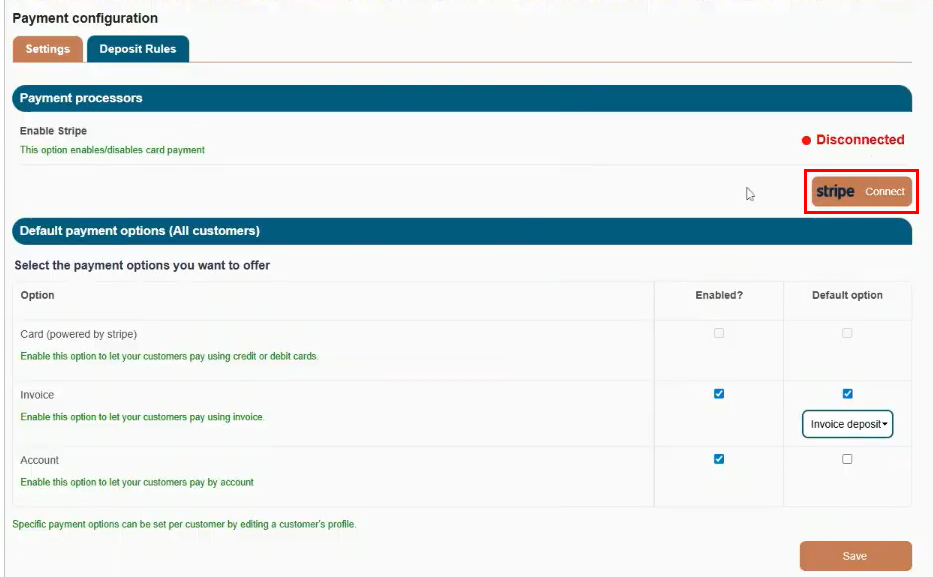
Now you've enabled that setting, head to your Payment Settings page to enable the card payments setup.
By default, your Stripe connection will be disconnected, to enable this setting, click the Stripe Connect button.
 (Reference Image 4)
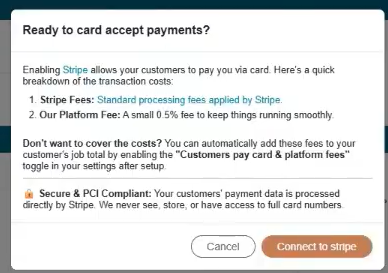
Once you click Stripe Connect, a pop-up will appear on your screen to advise you of some key details prior to enabling this setting. After reviewing the pop-up, select Connect to Stripe.
You'll then be redirected to Stripe to:
1. Sign into an existing account
OR
2. Create a new Stripe account
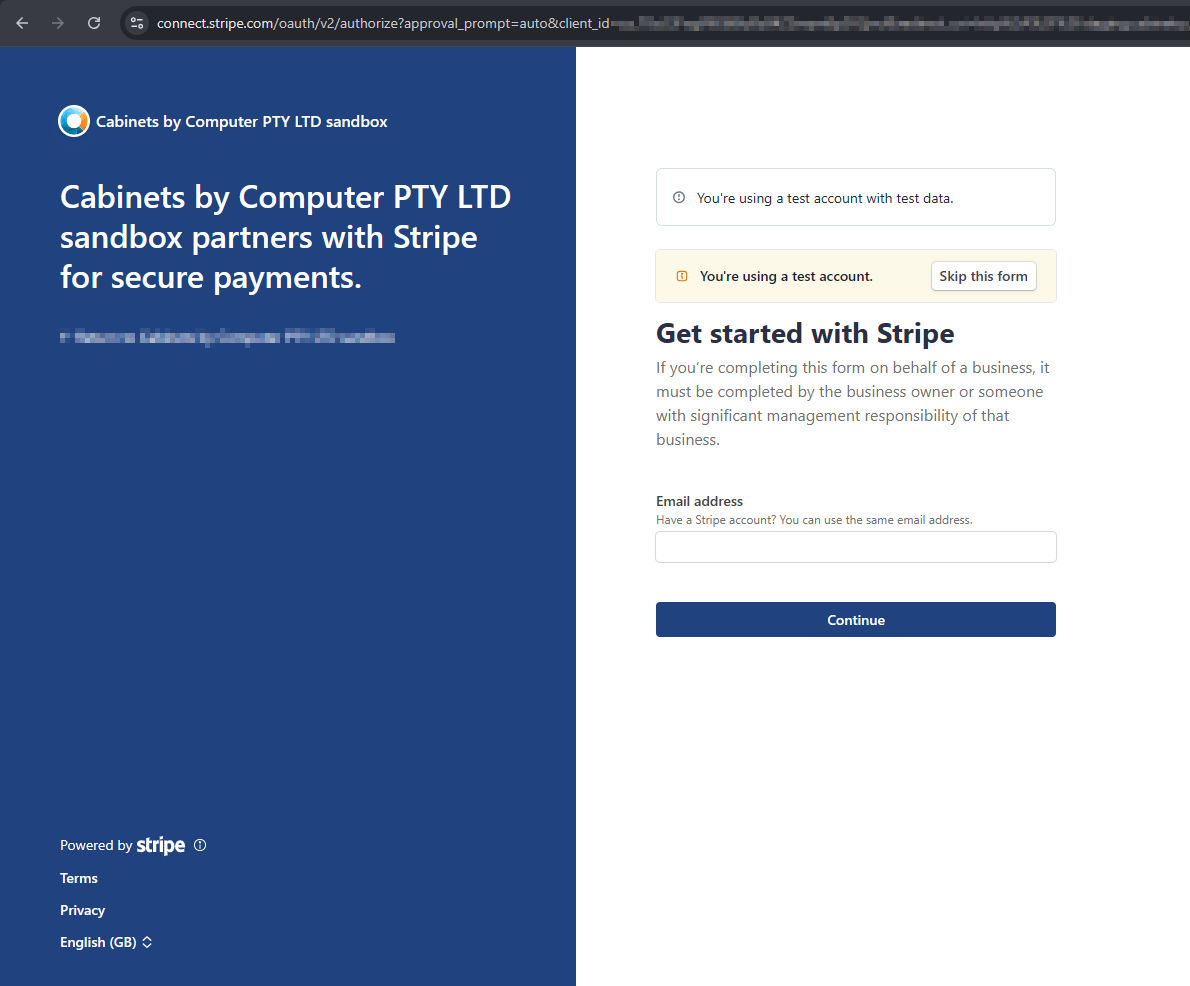
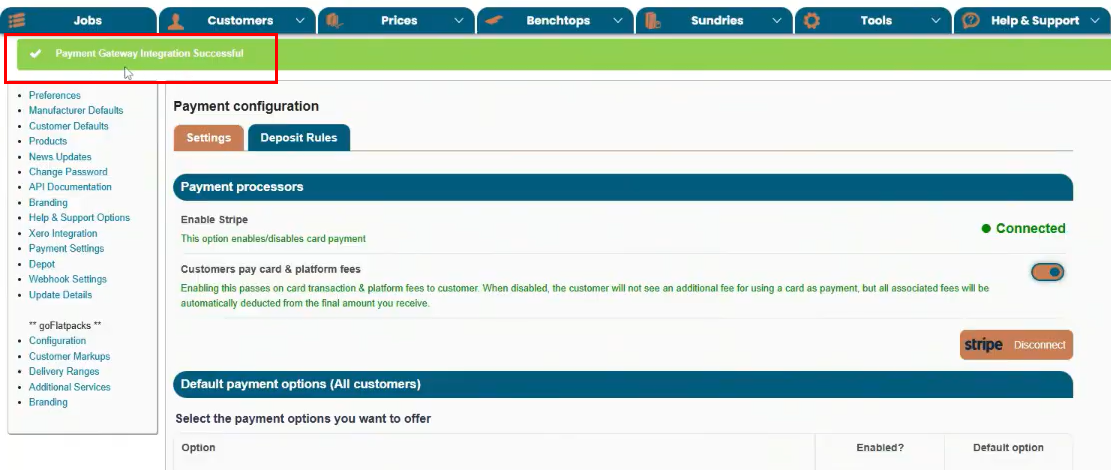
Once you've signed in or created an account, card payments will now be enabled on your portal.
Step 3. Choose Payment Methods
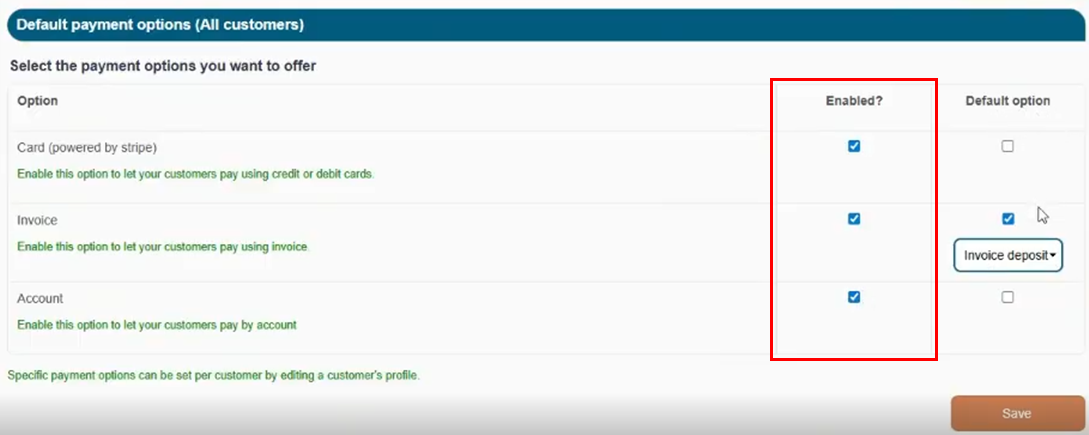
On your Payment Settings page, you can choose which payment options will be available to your customers.
These options include the following:
Card
- Customers can pay online using credit or debit cards via Stripe
Invoice
- Customers place the order and pay later via bank transfer
Account
- Orders are placed on the customer's account and invoiced through your normal process
You can also select which of the above 3 methods are the default payment option shown to customers when they get to the payment page.
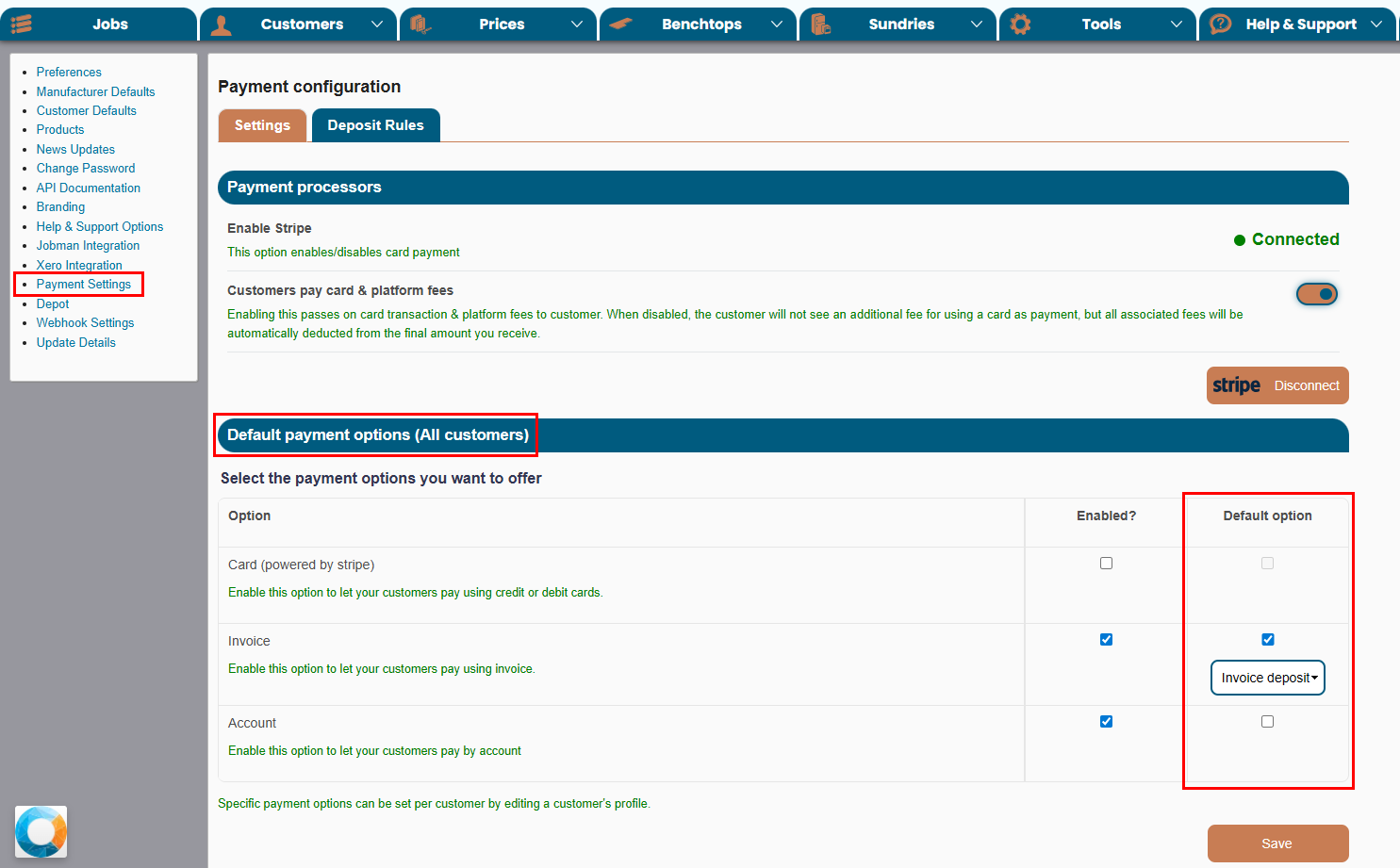
You can enable all three of these options for your customers but only one of these can be the default payment method.
Step 4. Configure Deposit Rules
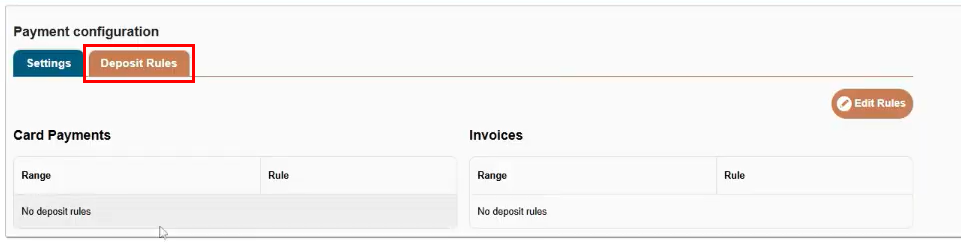
Deposit rules allow you to choose how much customers must pay when placing an order.
Click on the Deposit Rules tab next to the Settings on this page to view these configurations.
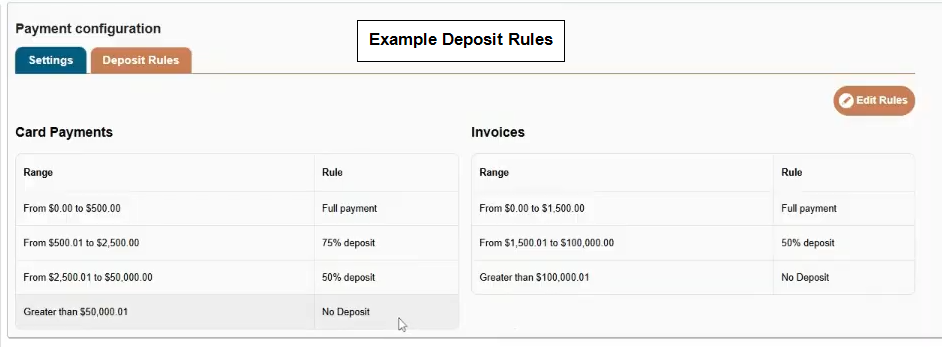
You can set rules based on job value, for example:
This allows you to secure a deposit for larger projects while still collecting full payment for smaller jobs.
Deposit rules can be configured separately for:
Card payments
Invoice payments
Both the Default Payments and the Deposit Rules can be overwritten on a per customer level, to learn how to do this, click here - https://cabinetsbycomputer.freshdesk.com/a/solutions/articles/60001644148
Was this article helpful?
That’s Great!
Thank you for your feedback
Sorry! We couldn't be helpful
Thank you for your feedback
Feedback sent
We appreciate your effort and will try to fix the article