Taking a screenshot differs depending on the device you're using.
Below are the quickest methods for the most common platforms.
WINDOWS COMPUTER
Capture Part of the Screen
Step 1:
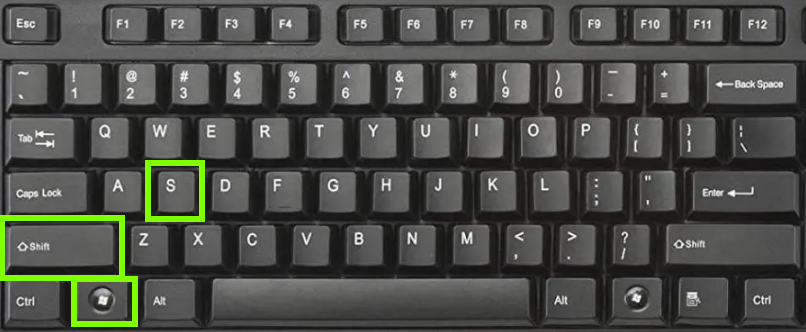
Press Windows Key + Shift + S at the same time.
Step 2:
Your screen will dim, and a quick option menu will appear.

Click and drag your mouse to select the area you want to capture.
Step 3:
The screenshot is copied automatically to your clipboard.
Press Ctrl + V to paste it.
That’s it ✅
Capture Entire Screen
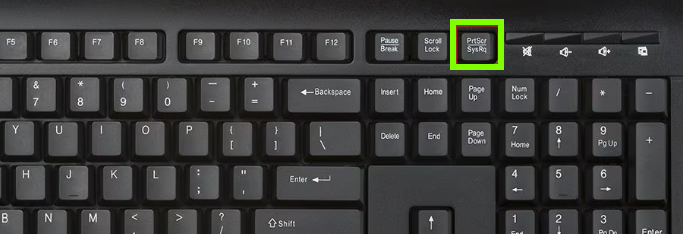
Press PrtScn (Print Screen) on your keyboard
This will automatically capture the entire screen onto your clipboard.
Then paste into email with Ctrl + V
MAC COMPUTER
Capture Part of the Screen
Step 1:
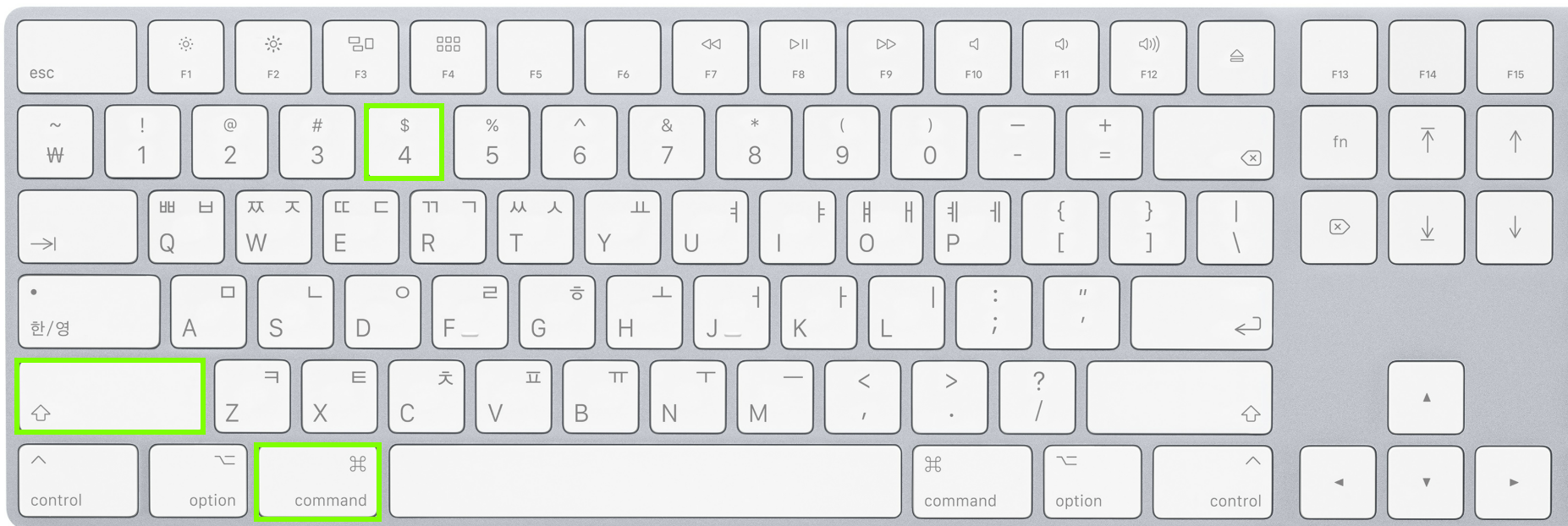
Press Command (⌘) + Shift + 4
Step 2:
Your cursor becomes a crosshair.
Click and drag to select the area.
Step 3:
The screenshot saves automatically to the desktop.
Attach that file to your email.
Capture the Whole Screen
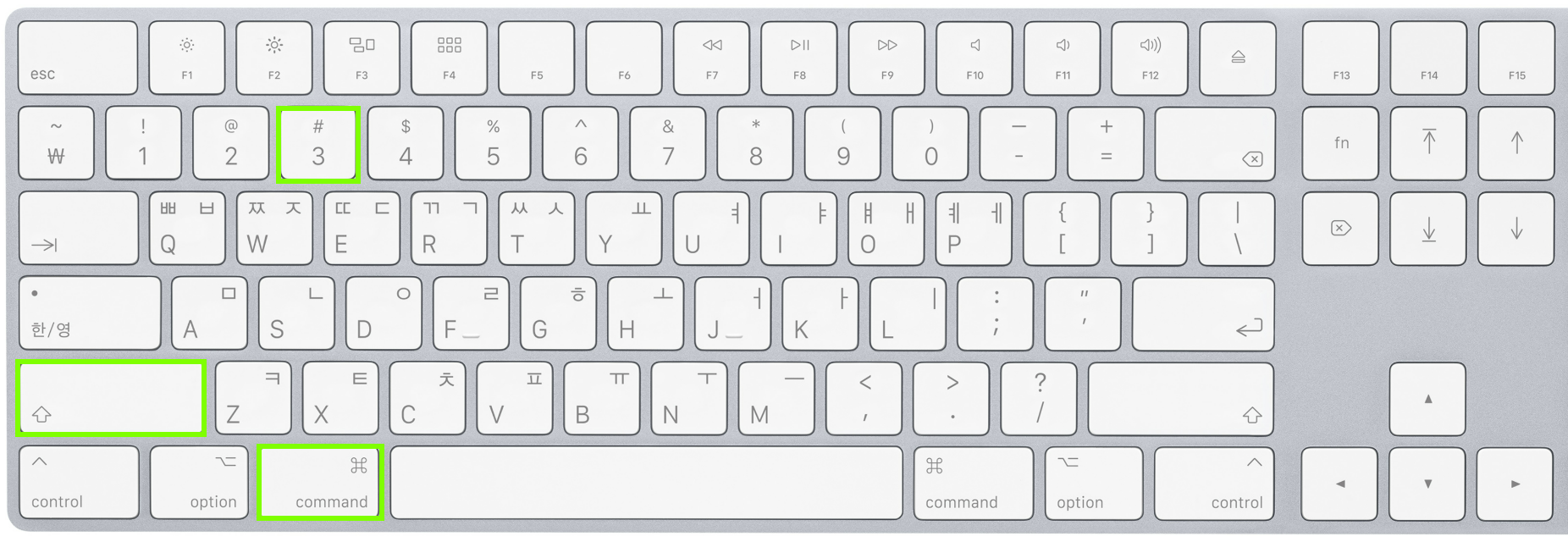
Press Command (⌘) + Shift + 3
IPHONE
If Your iPhone Has Face ID (No Home Button)
Press: Side Button + Volume Up at the same time.
The screen will flash.
Find it in: Photos → Screenshots
If Your iPhone Has a Home Button
Press: Side Button + Home Button
ANDROID PHONE
Most Android phones:
Press: Power Button + Volume Down
Hold for 1 second.
Find it in: Photos or Gallery → Screenshots
If that doesn’t work: Swipe down from the top → Tap Screenshot
Was this article helpful?
That’s Great!
Thank you for your feedback
Sorry! We couldn't be helpful
Thank you for your feedback
Feedback sent
We appreciate your effort and will try to fix the article