Purpose:
The purpose of this guide is to show you how to adjust your default cabinet construction method inside of WoodCAM for all cabinet types.
Note:
This guide will only cover Cabinetry.Online customers, the process is slightly different for customers with the production software only, please reach out if you need assistance with this.
Disclaimer:
Changing your default cabinet construction method will not update any products inside goCabinets, customers may expect products to reflect our default construction method (Internal Backs).
Cabinets by Computer does not take responsibility for any incorrect data entered into our production software.
We are not liable for inconsistencies, damages, incorrect operations or errors upon CNC operation due to changes made in the production software. The ownness is on the CNC owner / operator to ensure this information has been entered correctly and to test the changes to ensure every drilling and machining operation completed on their CNC can handle the changes given to it.
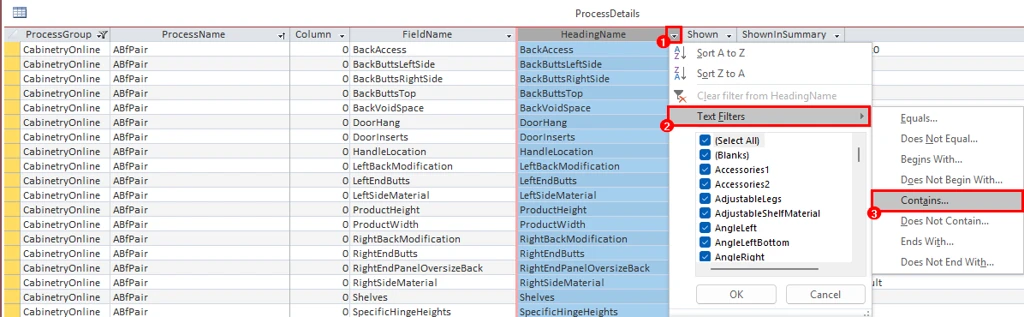
Navigate to your WoodCAM database and go to the ProcessDetails tab.
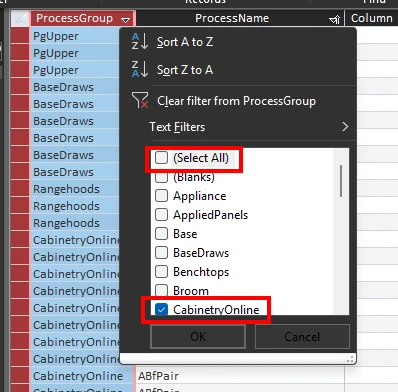
Filter the ProcessGroup by the Cabinetry.Online values.
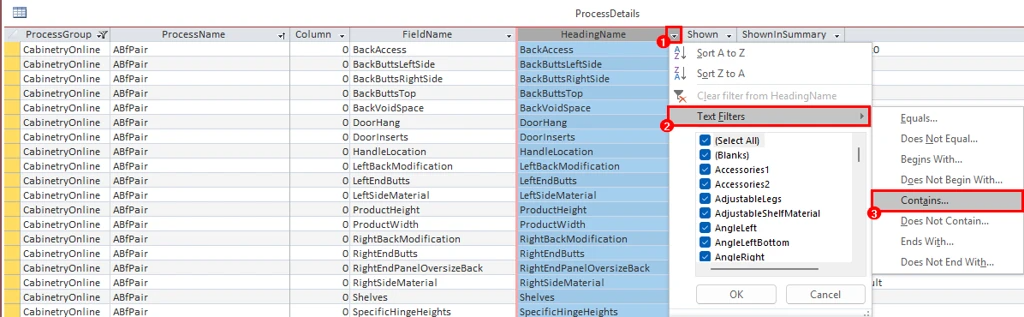
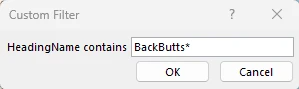
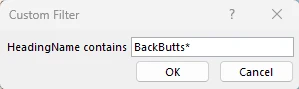
You will also need to filter the HeadingName > Text_Filters > Contains and filter for BackButts*.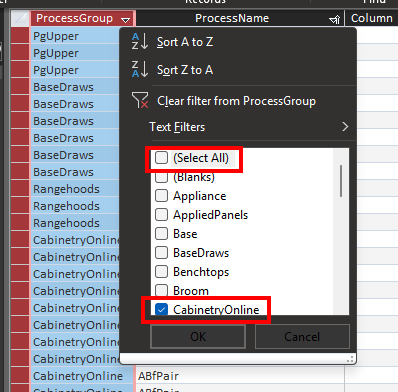
Note:
Anything with the below listed ProcessNames should NOT have their construction method changed, as they relate to the Microwave, Oven and Rangehoods and have specific industry standards.
TWov1d
TWov2d
TWovMi1d
TWovMi2d
URHF
URHFl
URHFr
URHFRc
URHFRcL
URHFRcR
UMicroPair
BMicroDr
BOven
BOD600x600
BOven2Dr
BOven3Dr
BOvenDr
Locate the BackButts* fields:
BackButtsTopBackButtsLeftSideBackButtsRightSideBackButtsBottom
The FieldValue will need to be changed to a 1 or a 0 depending on what you require.
What the Values Mean:
If BackButtsLeftSide = 1
→ the back panel butts against the left side panel.
If you change it to 0
→ the left side panel butts against the back panel.
For example, below we have a BackButtsLeftSide value set to 1, meaning that the back panel will be butted against the left side panel. By changing this value to 0, the left panel would butt against the back panel instead.


This will also need to be done for Tops and Bottoms.
Search in HeadinName: TopButts* & BottomButts* and follow the same instructions as above.
Jobs will need to be re-imported in order for these changes to apply to them.
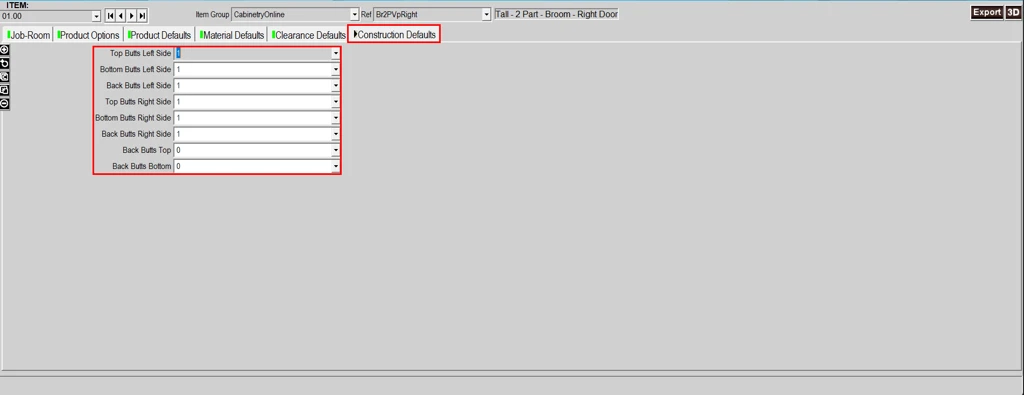
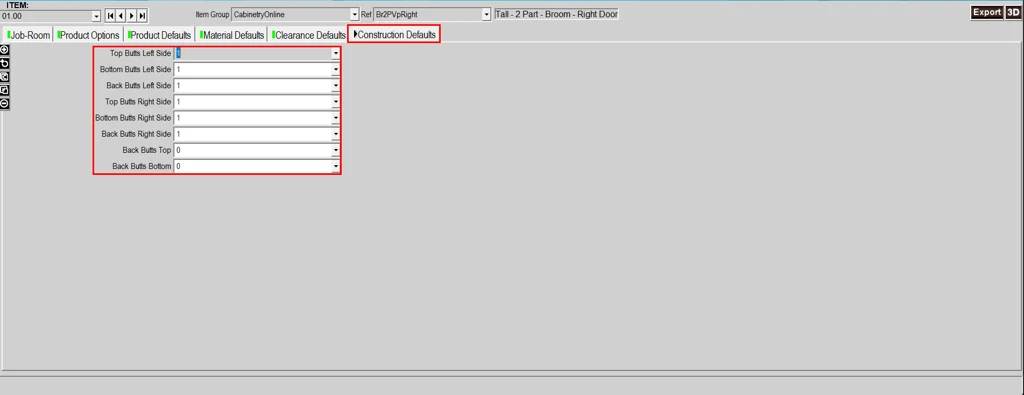
You can verify they have been applied by re-importing a job into WoodCAM, and checking the Construction Defaults tab.
Written By: Josh Rose Oct 23, 2026
Reviewed By: Callan Hossack
Was this article helpful?
That’s Great!
Thank you for your feedback
Sorry! We couldn't be helpful
Thank you for your feedback
Feedback sent
We appreciate your effort and will try to fix the article